# Get started
# Omnibus Intro
[](https://manuals.macropix.com/uploads/images/gallery/2023-12/D46ZVEWBEhkLbBDh-lista-player.jpg)
**Macropix “Omnibus”** is a digital signage software platform designed to play video files and images, fully meeting the requirements of any LED installation.
It is versatile, intuitive, and continuously evolving thanks to the commitment of the Macropix software engineering team. Omnibus is suitable for all types of LED and LCD digital signage applications.
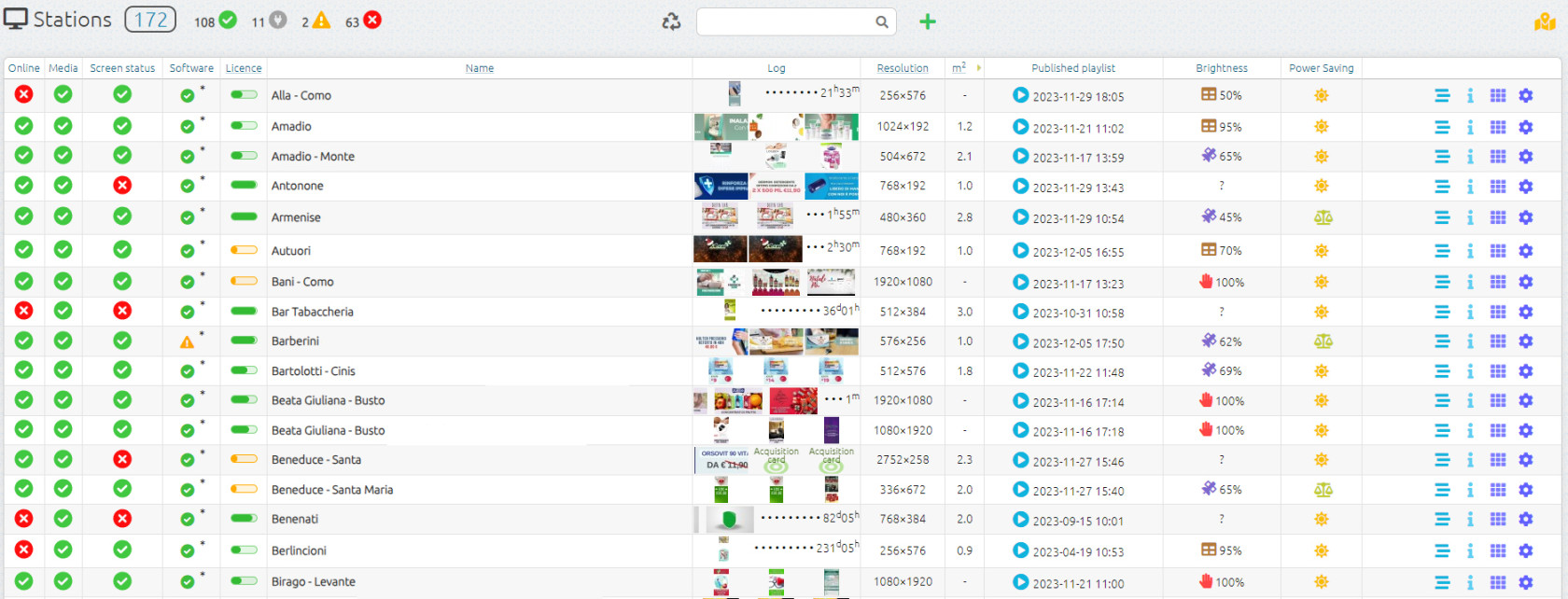
From the **Home** page, you can monitor the status of every online station (player), update their content and scheduling, and access additional information such as log files, screenshots, system specifications, operating system details, brightness levels, and more.
# Station Manager
[](https://manuals.macropix.com/uploads/images/gallery/2023-12/D46ZVEWBEhkLbBDh-lista-player.jpg)
**Online:** shows the current status of the station, indicating whether it is connected or not connected to the server.
**Media:** reports any errors related to the published content.
**Screen:** reports any errors detected on the LED screen.
**Name:** the name assigned to the station.
**Log:** displays screenshots of the videos currently playing in the playlist.
**Resolution:** the resolution of the LED screen.
**Playlist Published:** the playlist currently running on the station.
**Brightness:** the mode and current brightness level of the LED wall.
**Info:** includes drafts, station playlist, general information, and system information.
# Map view
[](https://manuals.macropix.com/uploads/images/gallery/2022-04/image-1649339908753.PNG)
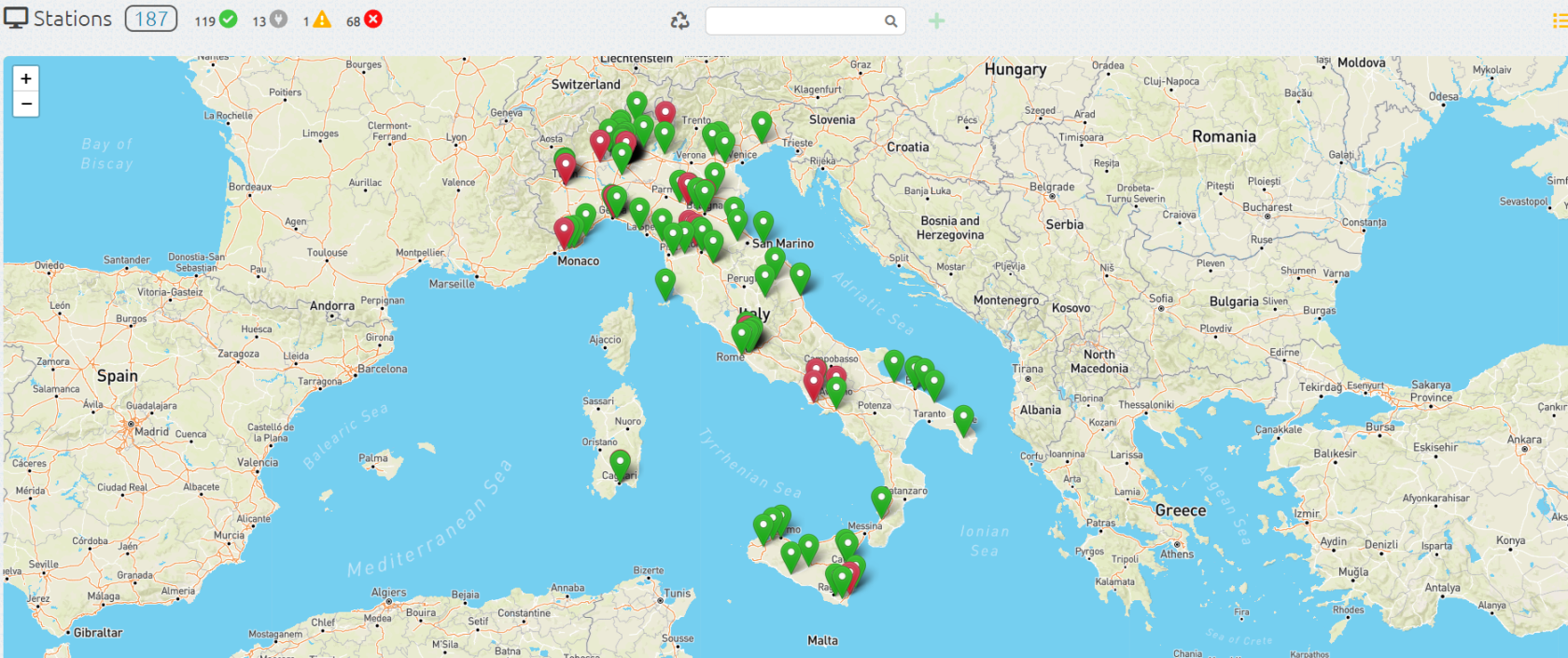
By clicking on the image [](https://manuals.macropix.com/uploads/images/gallery/2022-04/image-1649334508944.PNG) you can view your stations on a map, provided that the longitude and latitude have been entered in the general information of each station.
[](https://manuals.macropix.com/uploads/images/gallery/2023-12/bfmFAY0xzNPxEc10-screen2.png)
# Media Upload
[](https://manuals.macropix.com/uploads/images/gallery/2022-04/image-1649340241265.png)
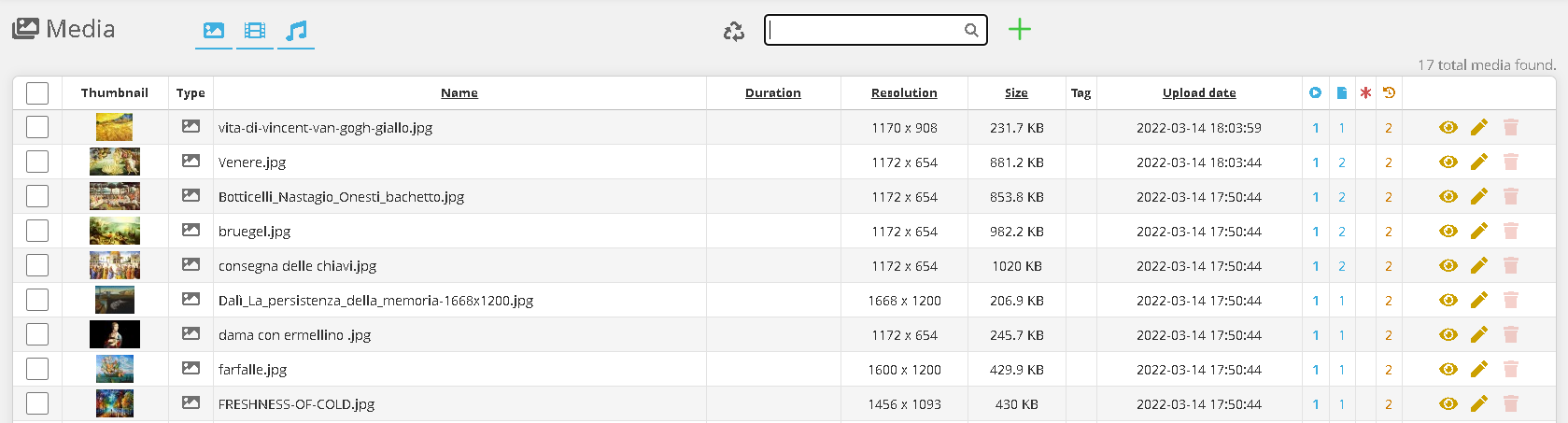
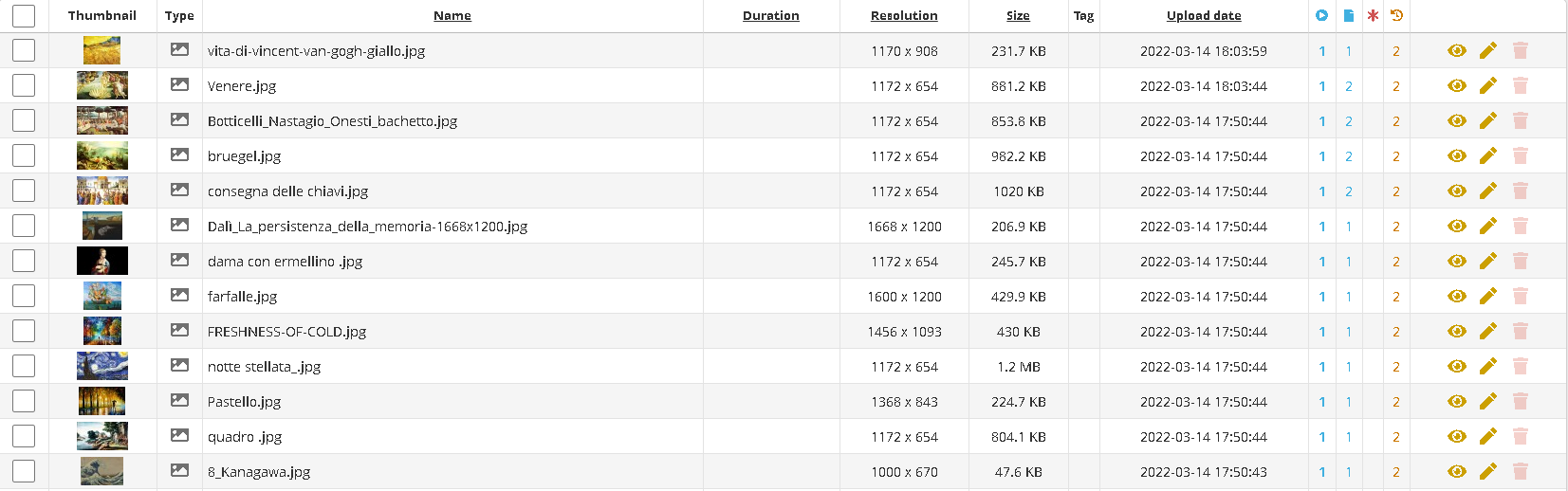
To upload one or more pieces of content, simply go to the **Media** page.
[](https://manuals.macropix.com/uploads/images/gallery/2022-04/image-1649340254216.PNG)
Click on the image [](https://manuals.macropix.com/uploads/images/gallery/2022-04/image-1649323474045.PNG)
[](https://manuals.macropix.com/uploads/images/gallery/2022-04/image-1649318286668.PNG)
Then click **“Choose File”** and select the media you want to upload, and wait for the upload to complete.
The main formats are supported: **.mp4, .mov, .jpg, .png, .mp3**.
[](https://manuals.macropix.com/uploads/images/gallery/2023-01/NPIPI9VNUFPCczSv-pagina-web.png)
It is also possible to create a **web address element**, which can then be inserted into the playlist.
[](https://manuals.macropix.com/uploads/images/gallery/2023-01/SSz0hxrXrLS8cUZU-codice-html.png)
You can also create an **HTML Code** element, which can then be inserted into the playlist.
# Video specifications
[](https://manuals.macropix.com/uploads/images/gallery/2022-04/image-1649340321838.PNG)
For optimal and safe operation of Macropix **“Omnibus”**, we recommend the following video specifications (for resolutions up to **1920×1080** when using **Omnibus-100 / 200 /300E**) and higher when using **Omnibus-400**:
- **Format:** .mp4
- **Codec:** H.264
- **Maximum Bitrate:** 12,000 Kbps
# Playlist published
[](https://manuals.macropix.com/uploads/images/gallery/2022-04/image-1649340503402.png)
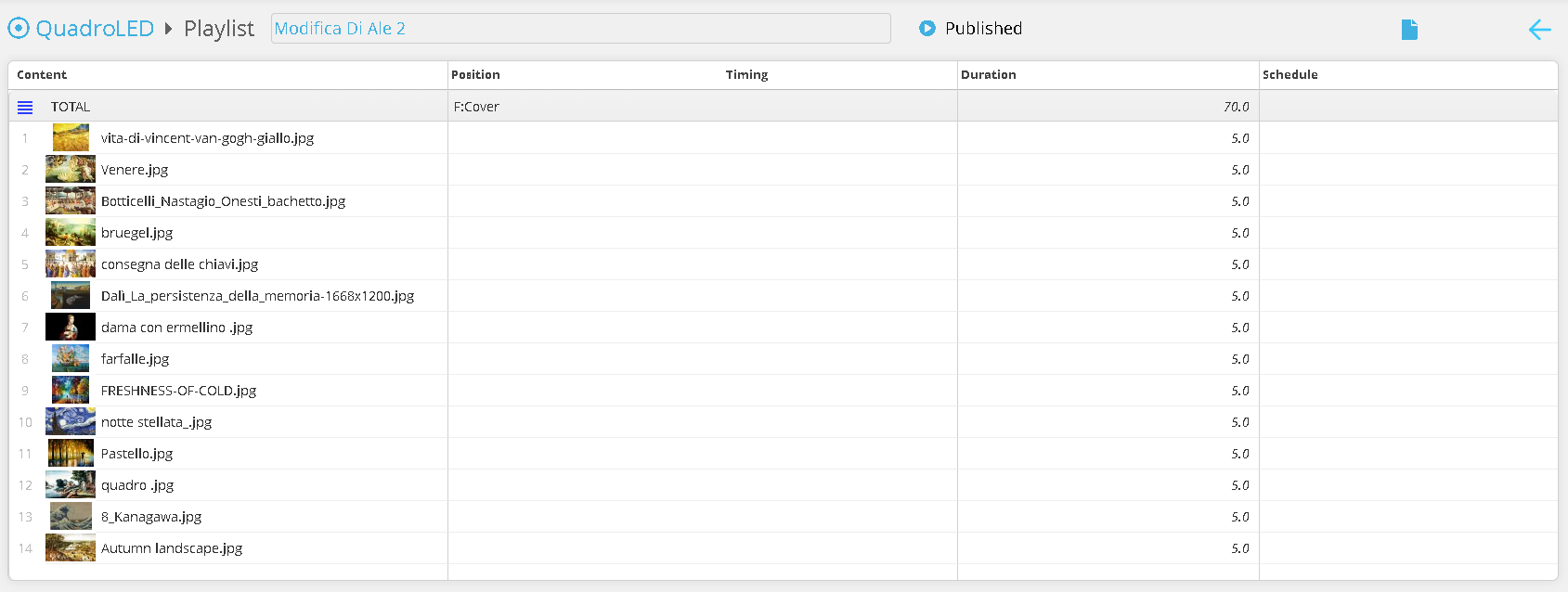
In the **Published Playlist** column, by clicking on the **image** [](https://manuals.macropix.com/uploads/images/gallery/2022-04/image-1649323396191.PNG) you can access the published playlist — the one currently being played by the station.
[](https://manuals.macropix.com/uploads/images/gallery/2022-04/image-1649340876227.PNG)
On this page, you can view the media currently playing on the station.
# Playlist
[](https://manuals.macropix.com/uploads/images/gallery/2022-04/image-1649341378800.png)
By clicking on the playlist icon, you will enter the **Playlist** page.
[](https://manuals.macropix.com/uploads/images/gallery/2022-04/image-1649341387319.PNG)
On this page, you can create a new playlist using [](https://manuals.macropix.com/uploads/images/gallery/2022-04/image-1649323268652.PNG) or edit an existing draft by clicking [](https://manuals.macropix.com/uploads/images/gallery/2022-04/image-1649323323626.PNG)
[](https://manuals.macropix.com/uploads/images/gallery/2022-04/image-1649343848407.png)
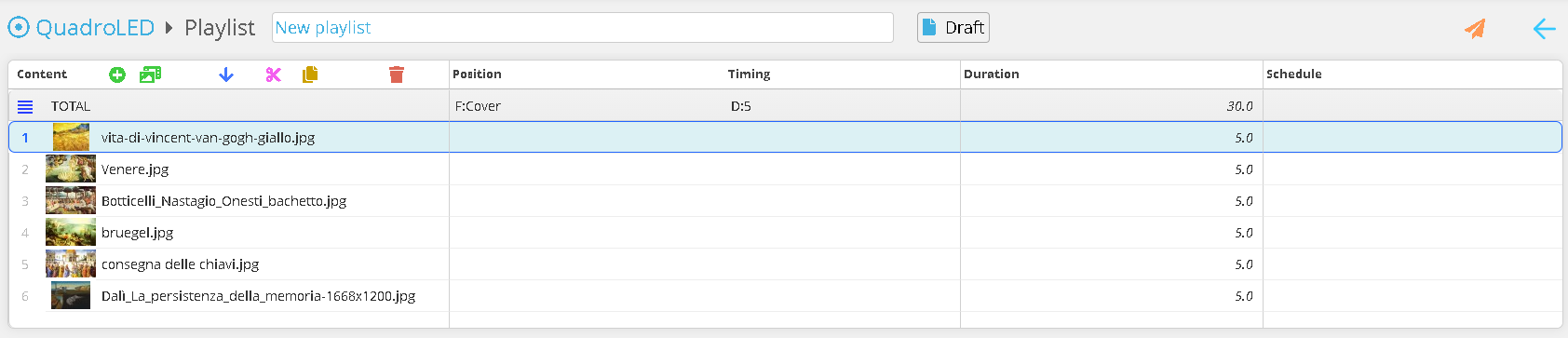
Click the **“Add Media”** button and select the media you want to include in the playlist.
[](https://manuals.macropix.com/uploads/images/gallery/2022-04/image-1649343910301.PNG)
You can now reorder the contents, duplicate them, or delete them. Once all changes have been completed, you can publish the playlist to the station using [](https://manuals.macropix.com/uploads/images/gallery/2022-04/image-1649323194074.PNG)
# Net Configuration
[](https://manuals.macropix.com/uploads/images/gallery/2023-03/LLuVLKVPsCEKdW3M-rete.png)
IP 173.249.23.109
Port 443 and 80