Rooms
Introduction
Rooms are used to share a portion of the playlist to a "guest" user.

Typical case:
An LED display in a store located in another town is managed by the headquarters. However, the store manager needs to manage a portion of the overall playlist to insert special promotions that apply only to that specific store.
This is where the Room function comes into play: it creates a virtual, restricted space in which the store manager can manage only the assigned portion of the playlist.
Headquarters can also apply a number of restrictions to the Room to limit or control its use.
Room creation
To create a new Room click the "+" button.

Set an abbreviation, a name, and, if needed, a description.

It is possible to set limits for the Room, such as:
-
minimum and maximum duration of its playlist
-
minimum and maximum required percentage of playback time
Gestione playlist
The generated Rooms will be displayed in the Rooms menu, showing:
-
the status of the Room (open or closed)
-
its name
-
the applied limits
-
the date of the last publication
-
the publication status: published, publishing, or unpublished
By clicking on the Published Playlist column  the guest user can access and populate their playlist.

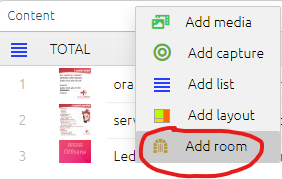
To insert the new Room into the destination playlist, click the “Add Room” button  .
.
As you can see in the image below, the Room playlist is automatically inserted into the station playlist.
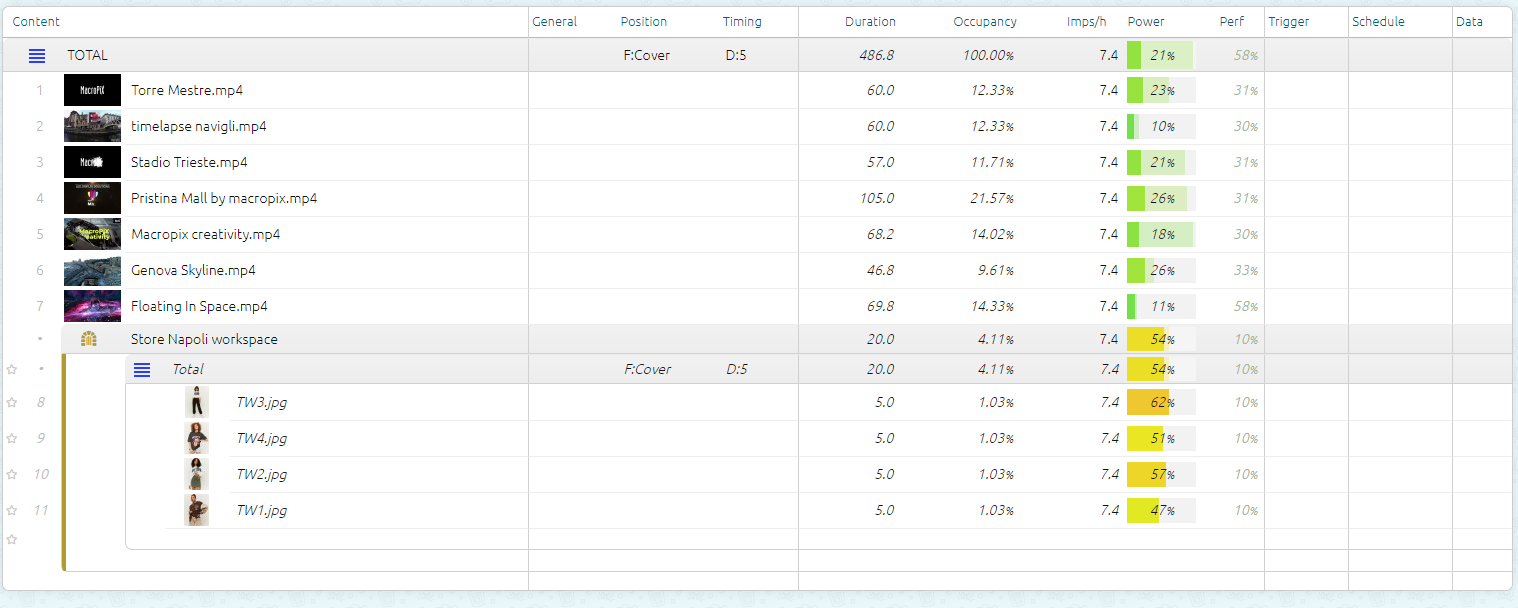
From now on, each time the Room is published, the station’s playlist will be automatically updated.