# Rooms
# Introduction
Rooms are used to share a portion of the playlist to a "guest" user.
[](https://manuals.macropix.com/uploads/images/gallery/2024-04/2hEa0mJGOXVwFHbZ-room.png)
**Typical case:**
An LED display in a store located in another town is managed by the headquarters. However, the store manager needs to manage a portion of the overall playlist to insert special promotions that apply only to that specific store.
This is where the **Room** function comes into play: it creates a virtual, restricted space in which the store manager can manage only the assigned portion of the playlist.
Headquarters can also apply a number of restrictions to the Room to limit or control its use.
---
# Room creation
To create a new Room click the "+" button.
[](https://manuals.macropix.com/uploads/images/gallery/2024-04/L93O3KZHvQONFNfs-creazione-room-start.png)
Set an abbreviation, a name, and, if needed, a description.
[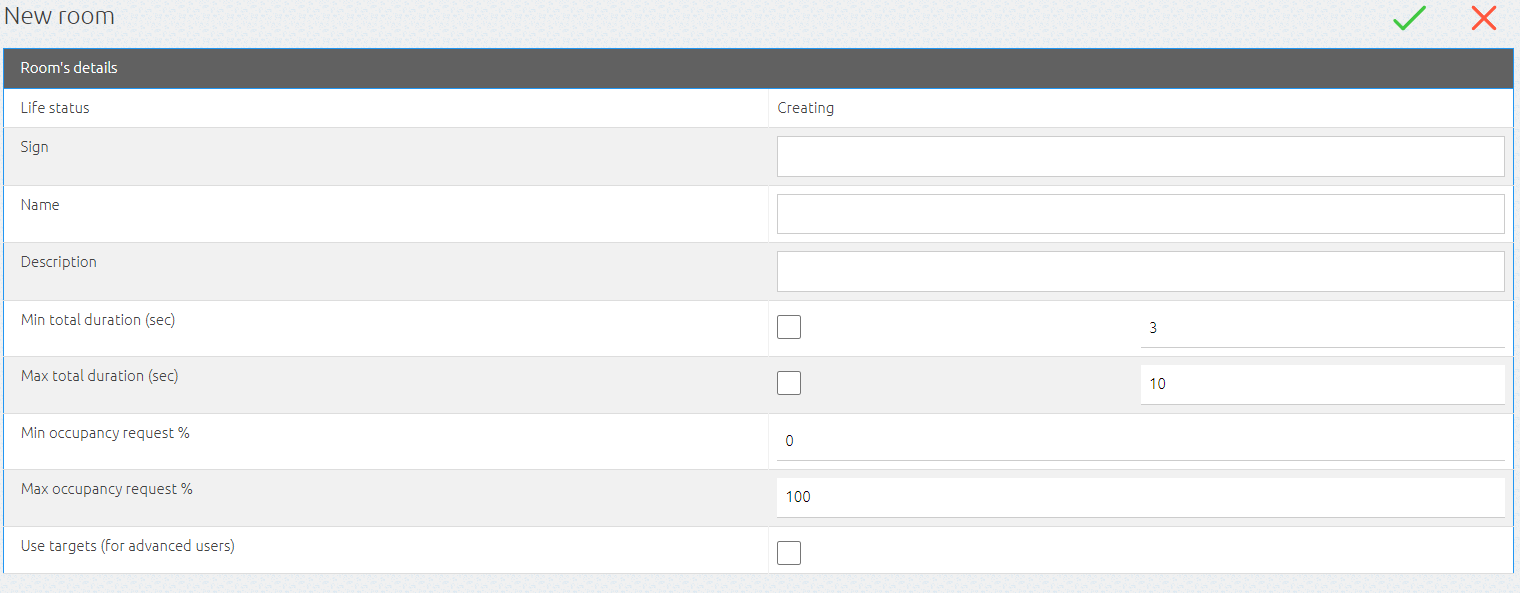](https://manuals.macropix.com/uploads/images/gallery/2024-04/OkvHAyNZHR2FVrNL-creazione-room-en.png)
It is possible to set limits for the Room, such as:
- minimum and maximum duration of its playlist
- minimum and maximum required percentage of playback time
# Gestione playlist
The generated Rooms will be displayed in the **Rooms** menu, showing:
- the status of the Room (open or closed)
- its name
- the applied limits
- the date of the last publication
- the publication status: published, publishing, or unpublished
[](https://manuals.macropix.com/uploads/images/gallery/2024-04/2hEa0mJGOXVwFHbZ-room.png)
By clicking on the **Published Playlist** column [](https://manuals.macropix.com/uploads/images/gallery/2022-04/image-1649323396191.PNG) the guest user can access and populate their playlist.
[](https://manuals.macropix.com/uploads/images/gallery/2024-04/t4UN2CBy1l6iJ3tQ-room-playlist.png)
To insert the new Room into the destination playlist, click the **“Add Room”** button [.](https://manuals.macropix.com/uploads/images/gallery/2022-04/image-1649410775580.PNG)
[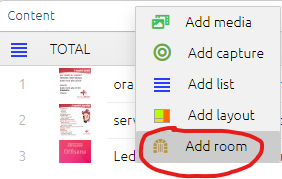](https://manuals.macropix.com/uploads/images/gallery/2024-04/mSDyQUOnCu1X2UH9-add-room.png)
As you can see in the image below, the Room playlist is automatically inserted into the station playlist.
[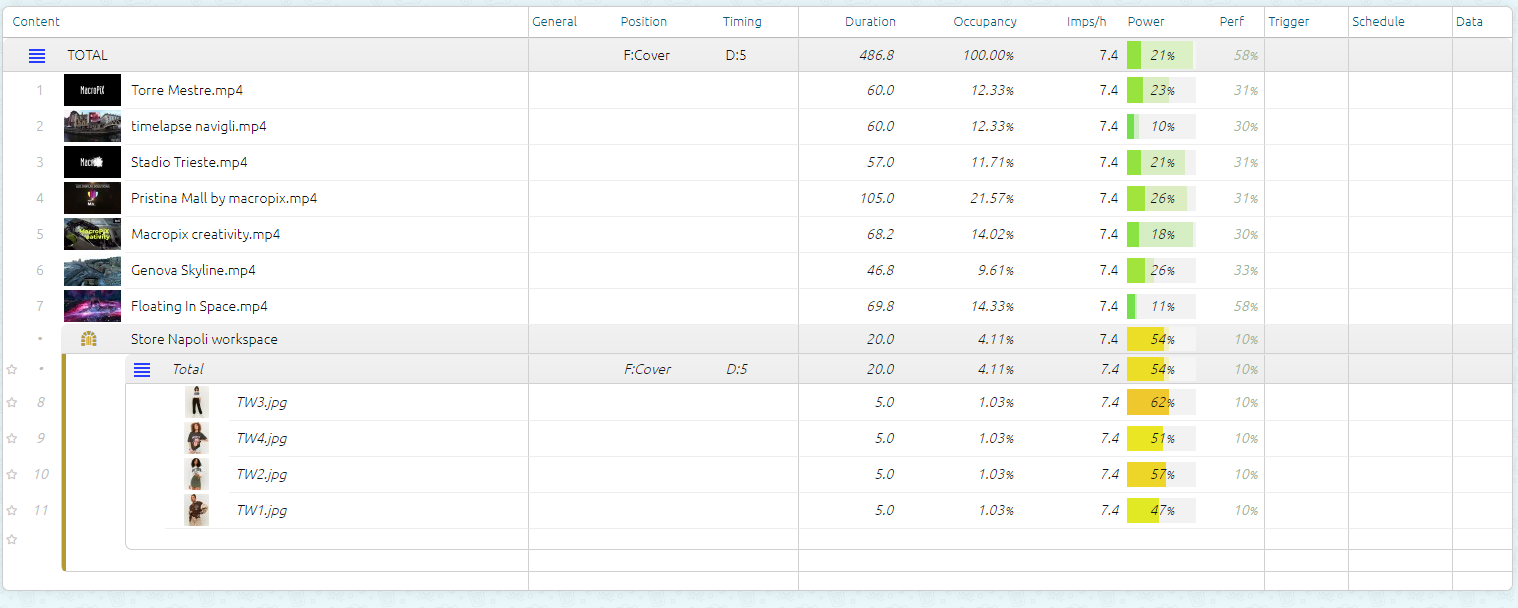](https://manuals.macropix.com/uploads/images/gallery/2024-04/X3Atwk5BcrI5Ixug-room-playlistroom.png)
From now on, each time the Room is published, the station’s playlist will be automatically updated.