The Playlist
Schedule

For each media item, it is possible to set a dedicated schedule by accessing the menu with a double-click on the Scheduling column of that media.
You can also set a general schedule by selecting TOTAL.
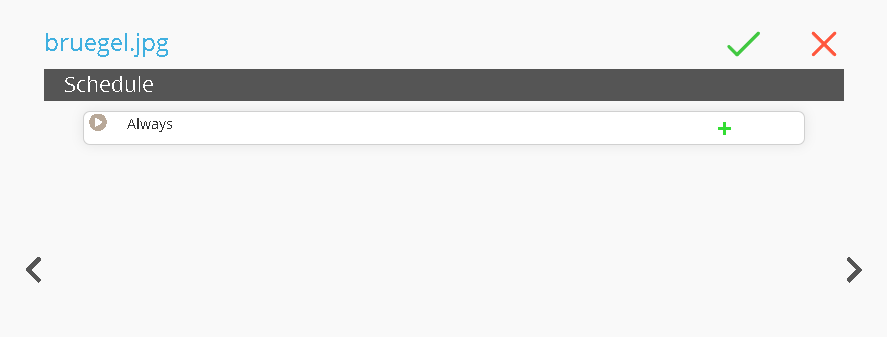
Once the page is open, click  buttons to add a sub-level
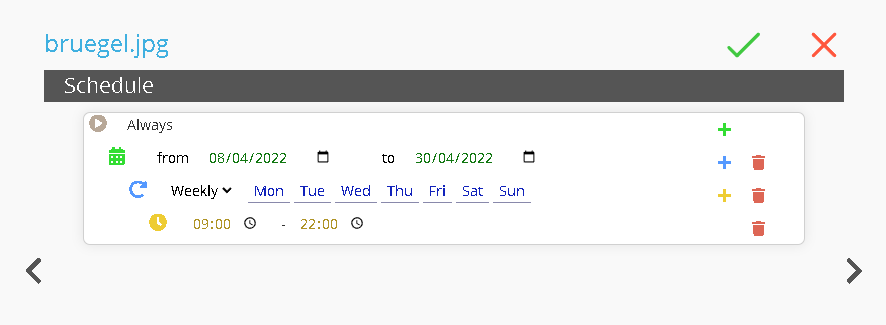
At this point, you can set:
-
Date Range: define the start and end dates.
-
Recurrence: set the weekly recurrence.
-
Time Range: set the daily time range.
This function allows you to schedule content in advance for future events.
For example, you may schedule videos for the opening or closing hours of a shop. In this case, the media file “bruegel.jpg” will be played from 8 April 2022 to 30 April 2022, from Monday to Sunday, between 9:00 AM and 10:00 PM.
Advance Timing
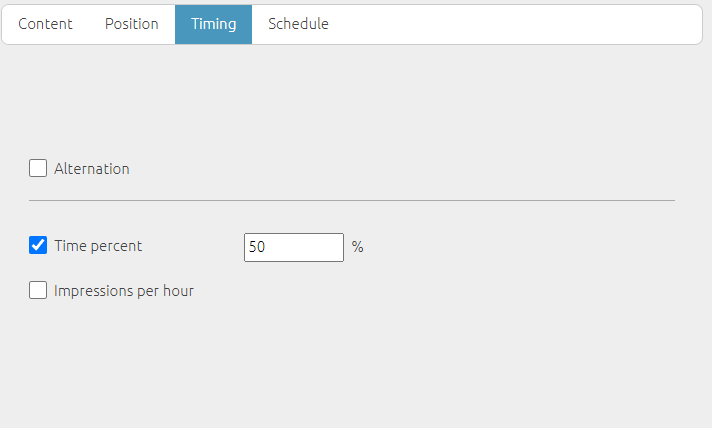
Alternation allows you to alternate the contents.
- The “Times Percent” function enables you to set a percentage of playback time for a specific media item or for a list, layout, folder, or project.
- The “Times per Hour” function, on the other hand, allows you to define how many times per hour a specific content should be played.
Containers
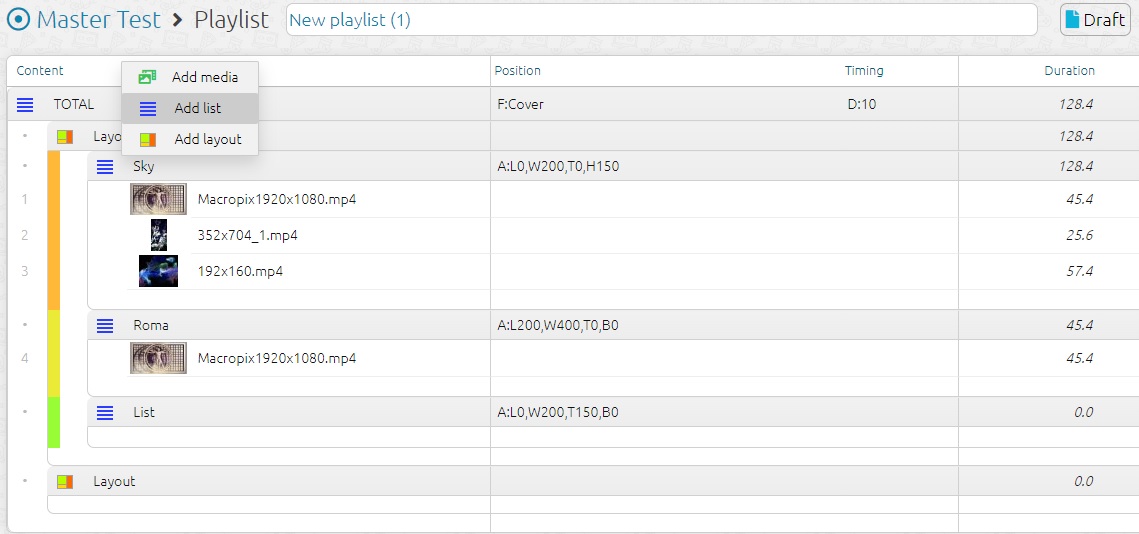
Playlist items can be of two types: media and containers.
Containers
-
Layout: a tool used to divide the video window into different areas.
-
List: allows you to divide the playlist into multiple containers to keep it better organized.
Layout
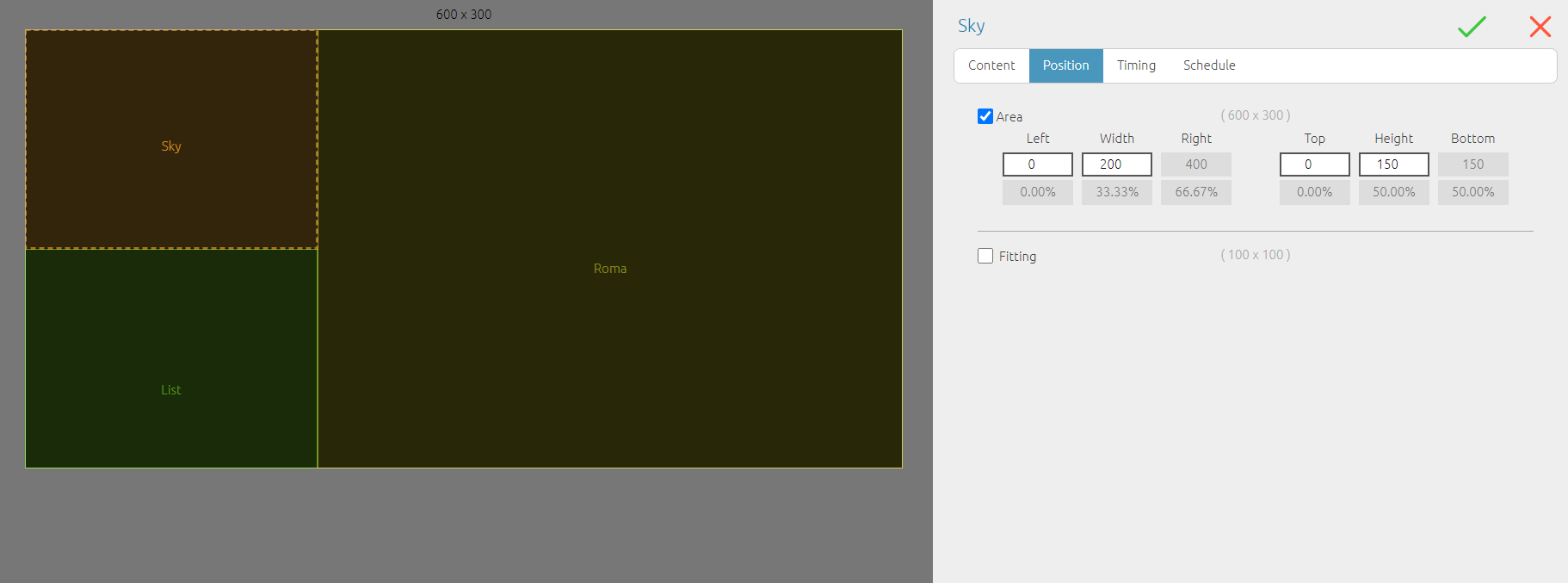
This element allows you to play multiple items in parallel by partitioning the video window.
Once the layout is created, List items must be inserted—one for each partition—while assigning the desired area.
Within each list, the corresponding media contents can then be added. All contents will play simultaneously in synchronization.
Note: the maximum number of partitions depends on the hardware specifications of the PC. A more powerful processor and graphics card will support a higher number of simultaneous processes.