# Omnibus Web - EN
# Omnibus
[](https://manuals.macropix.com/uploads/images/gallery/2022-09/VIJLbL6GVGTC1EWX-denprimapagina.jpg)
# Get started
# Omnibus Intro
[](https://manuals.macropix.com/uploads/images/gallery/2023-12/D46ZVEWBEhkLbBDh-lista-player.jpg)
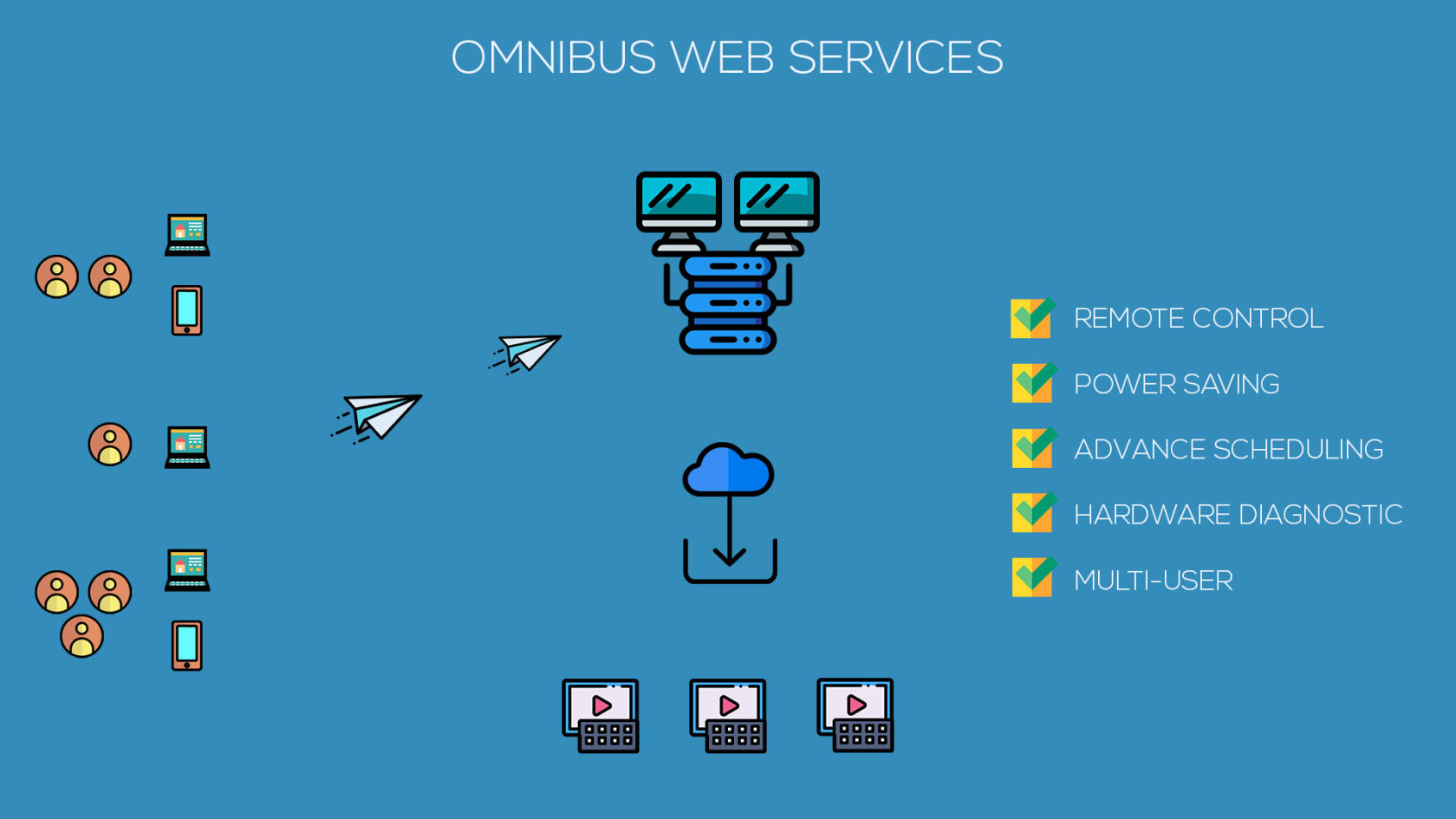
**Macropix “Omnibus”** is a digital signage software platform designed to play video files and images, fully meeting the requirements of any LED installation.
It is versatile, intuitive, and continuously evolving thanks to the commitment of the Macropix software engineering team. Omnibus is suitable for all types of LED and LCD digital signage applications.
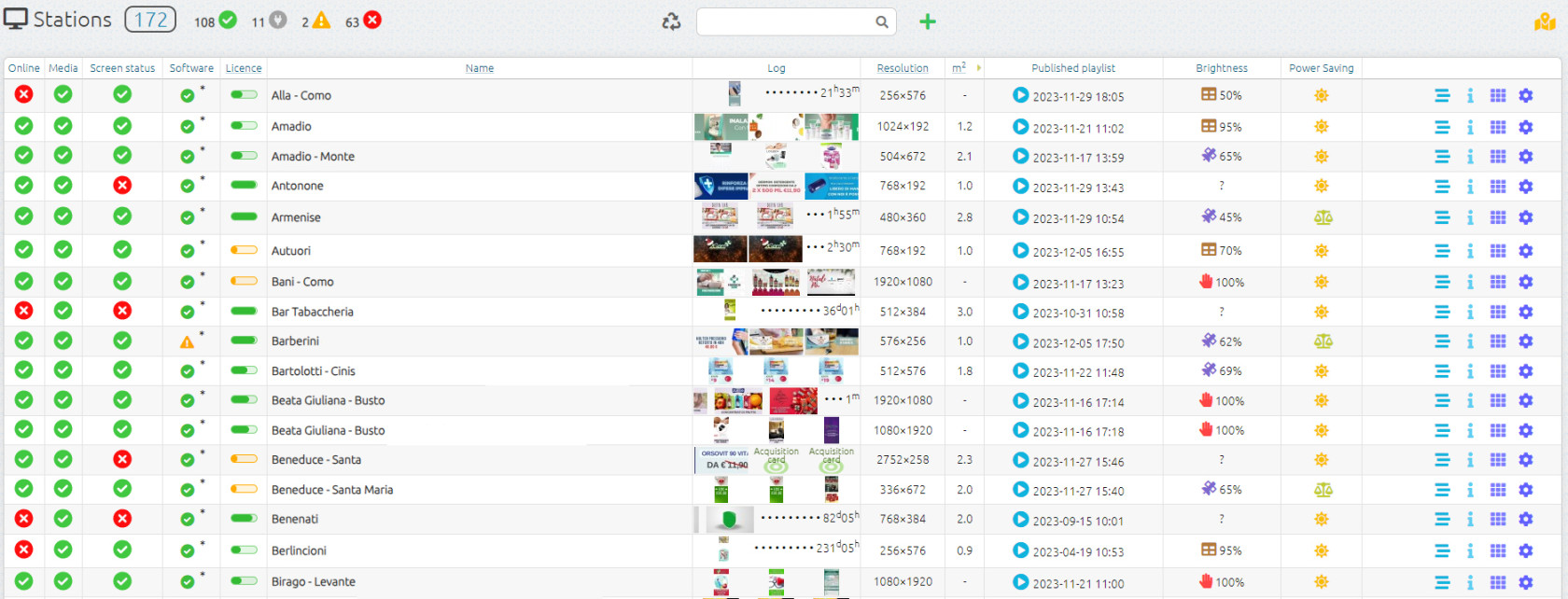
From the **Home** page, you can monitor the status of every online station (player), update their content and scheduling, and access additional information such as log files, screenshots, system specifications, operating system details, brightness levels, and more.
# Station Manager
[](https://manuals.macropix.com/uploads/images/gallery/2023-12/D46ZVEWBEhkLbBDh-lista-player.jpg)
**Online:** shows the current status of the station, indicating whether it is connected or not connected to the server.
**Media:** reports any errors related to the published content.
**Screen:** reports any errors detected on the LED screen.
**Name:** the name assigned to the station.
**Log:** displays screenshots of the videos currently playing in the playlist.
**Resolution:** the resolution of the LED screen.
**Playlist Published:** the playlist currently running on the station.
**Brightness:** the mode and current brightness level of the LED wall.
**Info:** includes drafts, station playlist, general information, and system information.
# Map view
[](https://manuals.macropix.com/uploads/images/gallery/2022-04/image-1649339908753.PNG)
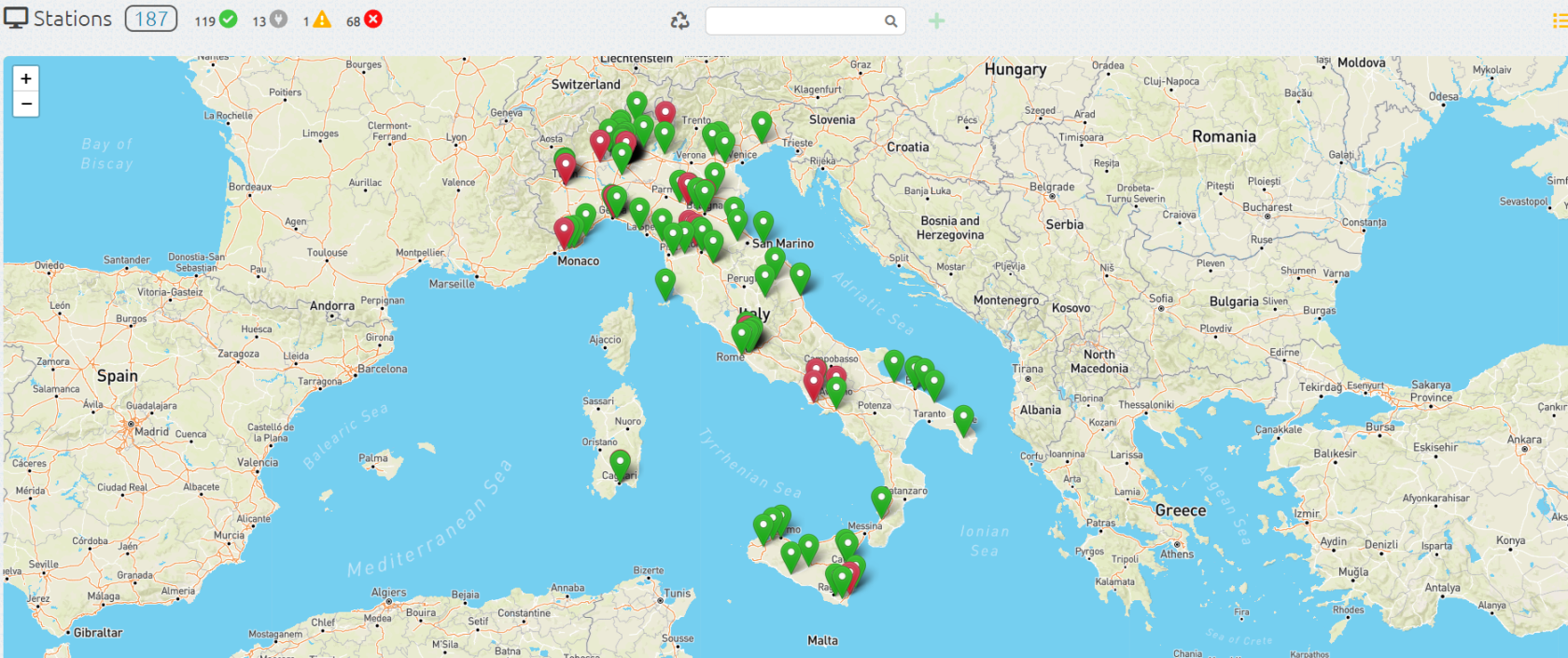
By clicking on the image [](https://manuals.macropix.com/uploads/images/gallery/2022-04/image-1649334508944.PNG) you can view your stations on a map, provided that the longitude and latitude have been entered in the general information of each station.
[](https://manuals.macropix.com/uploads/images/gallery/2023-12/bfmFAY0xzNPxEc10-screen2.png)
# Media Upload
[](https://manuals.macropix.com/uploads/images/gallery/2022-04/image-1649340241265.png)
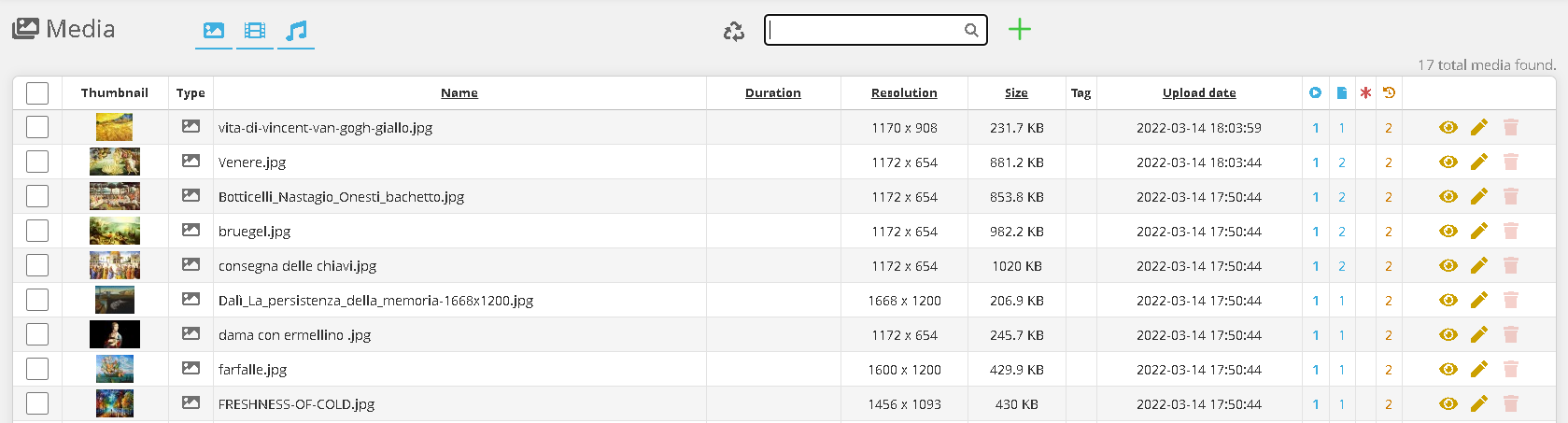
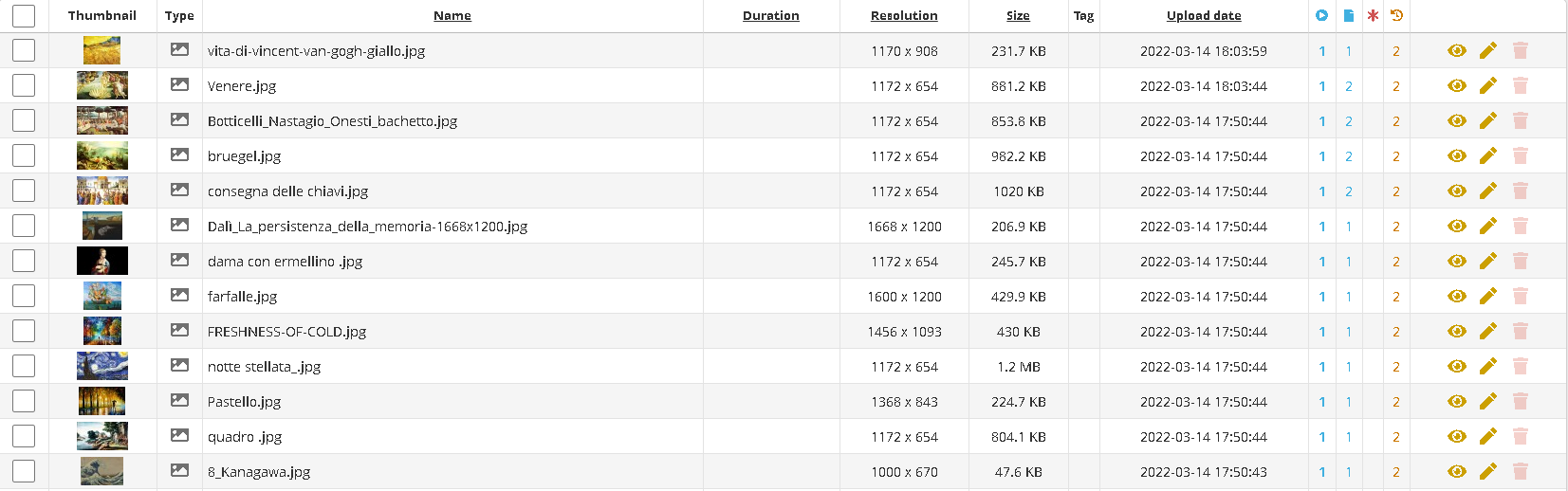
To upload one or more pieces of content, simply go to the **Media** page.
[](https://manuals.macropix.com/uploads/images/gallery/2022-04/image-1649340254216.PNG)
Click on the image [](https://manuals.macropix.com/uploads/images/gallery/2022-04/image-1649323474045.PNG)
[](https://manuals.macropix.com/uploads/images/gallery/2022-04/image-1649318286668.PNG)
Then click **“Choose File”** and select the media you want to upload, and wait for the upload to complete.
The main formats are supported: **.mp4, .mov, .jpg, .png, .mp3**.
[](https://manuals.macropix.com/uploads/images/gallery/2023-01/NPIPI9VNUFPCczSv-pagina-web.png)
It is also possible to create a **web address element**, which can then be inserted into the playlist.
[](https://manuals.macropix.com/uploads/images/gallery/2023-01/SSz0hxrXrLS8cUZU-codice-html.png)
You can also create an **HTML Code** element, which can then be inserted into the playlist.
# Video specifications
[](https://manuals.macropix.com/uploads/images/gallery/2022-04/image-1649340321838.PNG)
For optimal and safe operation of Macropix **“Omnibus”**, we recommend the following video specifications (for resolutions up to **1920×1080** when using **Omnibus-100 / 200 /300E**) and higher when using **Omnibus-400**:
- **Format:** .mp4
- **Codec:** H.264
- **Maximum Bitrate:** 12,000 Kbps
# Playlist published
[](https://manuals.macropix.com/uploads/images/gallery/2022-04/image-1649340503402.png)
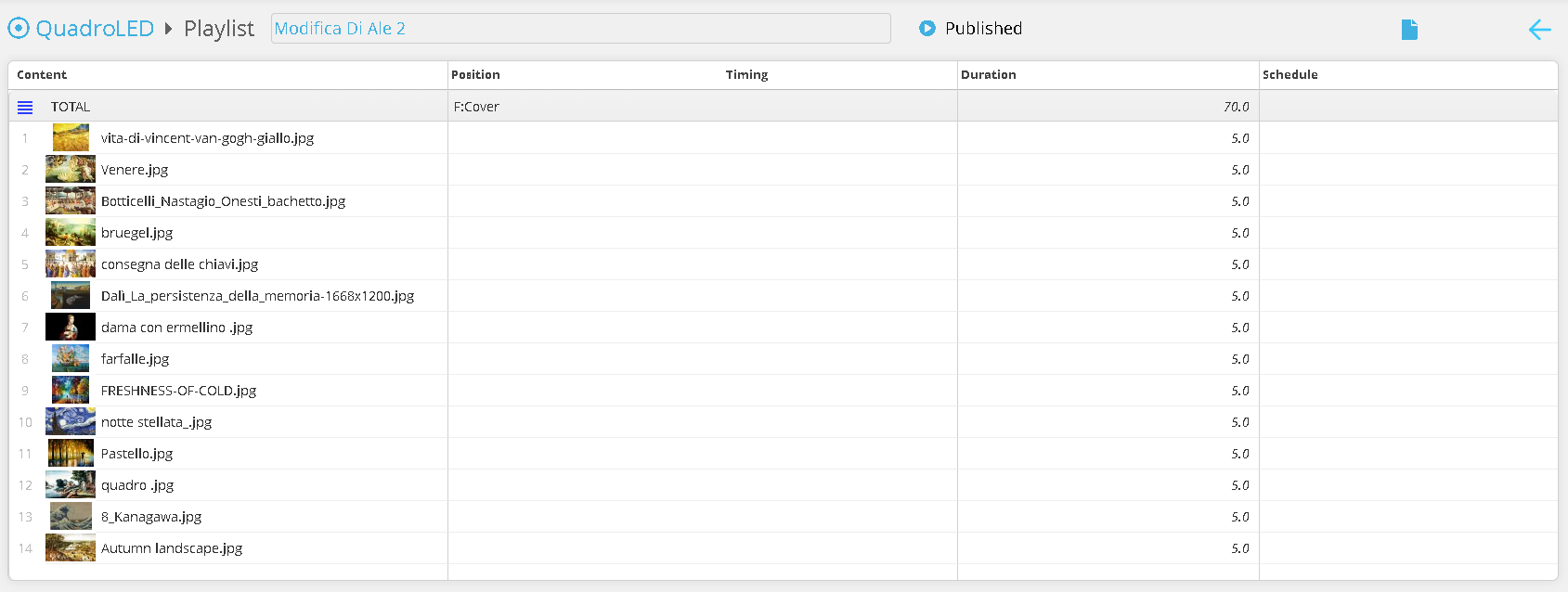
In the **Published Playlist** column, by clicking on the **image** [](https://manuals.macropix.com/uploads/images/gallery/2022-04/image-1649323396191.PNG) you can access the published playlist — the one currently being played by the station.
[](https://manuals.macropix.com/uploads/images/gallery/2022-04/image-1649340876227.PNG)
On this page, you can view the media currently playing on the station.
# Playlist
[](https://manuals.macropix.com/uploads/images/gallery/2022-04/image-1649341378800.png)
By clicking on the playlist icon, you will enter the **Playlist** page.
[](https://manuals.macropix.com/uploads/images/gallery/2022-04/image-1649341387319.PNG)
On this page, you can create a new playlist using [](https://manuals.macropix.com/uploads/images/gallery/2022-04/image-1649323268652.PNG) or edit an existing draft by clicking [](https://manuals.macropix.com/uploads/images/gallery/2022-04/image-1649323323626.PNG)
[](https://manuals.macropix.com/uploads/images/gallery/2022-04/image-1649343848407.png)
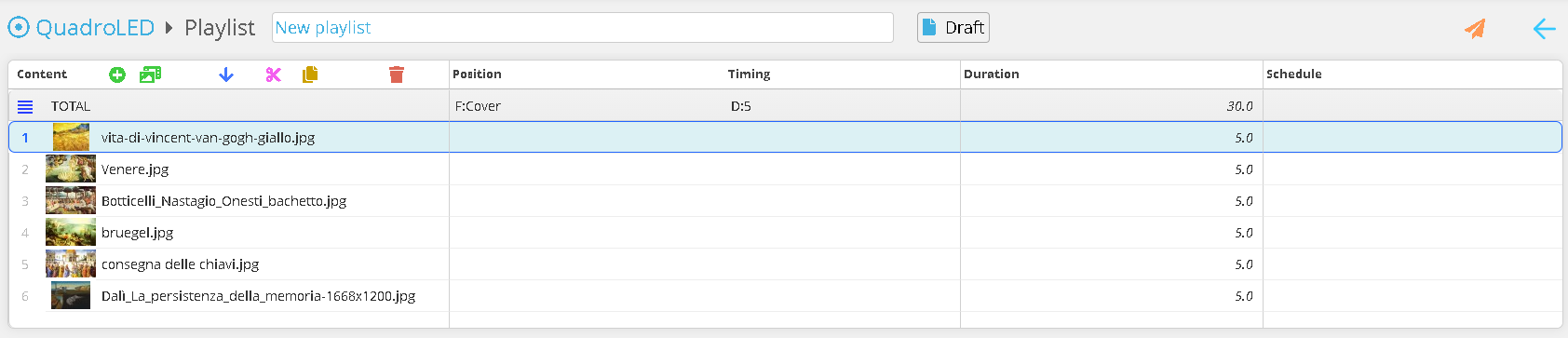
Click the **“Add Media”** button and select the media you want to include in the playlist.
[](https://manuals.macropix.com/uploads/images/gallery/2022-04/image-1649343910301.PNG)
You can now reorder the contents, duplicate them, or delete them. Once all changes have been completed, you can publish the playlist to the station using [](https://manuals.macropix.com/uploads/images/gallery/2022-04/image-1649323194074.PNG)
# Net Configuration
[](https://manuals.macropix.com/uploads/images/gallery/2023-03/LLuVLKVPsCEKdW3M-rete.png)
IP 173.249.23.109
Port 443 and 80
# The Playlist
# Schedule
[](https://manuals.macropix.com/uploads/images/gallery/2022-04/image-1649410711354.PNG)
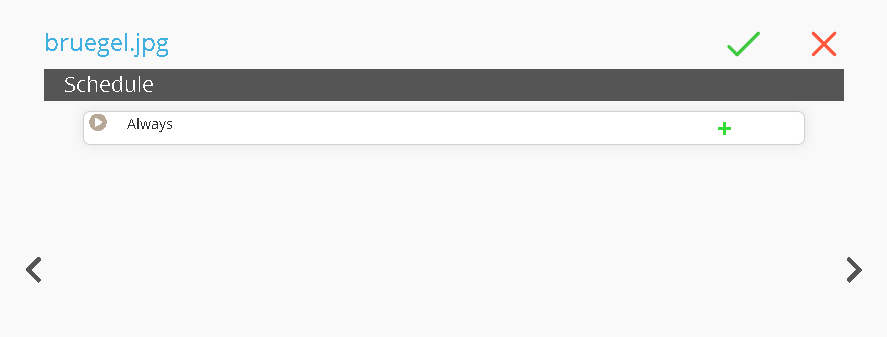
For each media item, it is possible to set a dedicated schedule by accessing the menu with a double-click on the **Scheduling** column of that media.
You can also set a general schedule by selecting **TOTAL**.
[](https://manuals.macropix.com/uploads/images/gallery/2022-04/image-1649410715806.PNG)
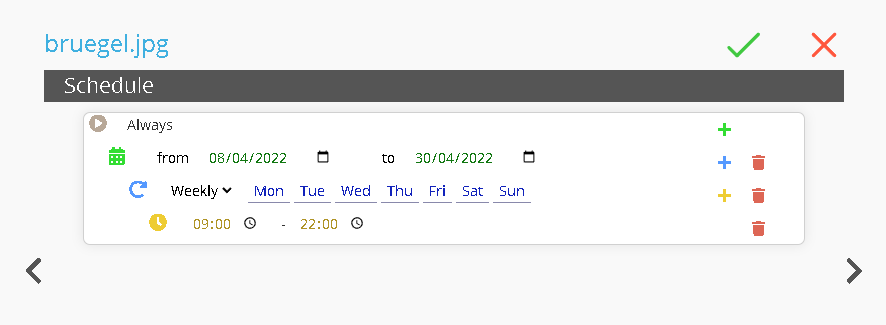
Once the page is open, click [ ](https://manuals.macropix.com/uploads/images/gallery/2022-04/image-1649410775580.PNG)buttons to add a sub-level
[](https://manuals.macropix.com/uploads/images/gallery/2022-04/image-1649410719909.PNG)
At this point, you can set:
- **Date Range:** define the start and end dates.
- **Recurrence:** set the weekly recurrence.
- **Time Range:** set the daily time range.
This function allows you to schedule content in advance for future events.
For example, you may schedule videos for the opening or closing hours of a shop. In this case, the media file **“bruegel.jpg”** will be played from **8 April 2022 to 30 April 2022**, from **Monday to Sunday**, between **9:00 AM and 10:00 PM**.
# Advance Timing
[](https://manuals.macropix.com/uploads/images/gallery/2023-01/2LCO90aKsYYDCXUa-timing.png)
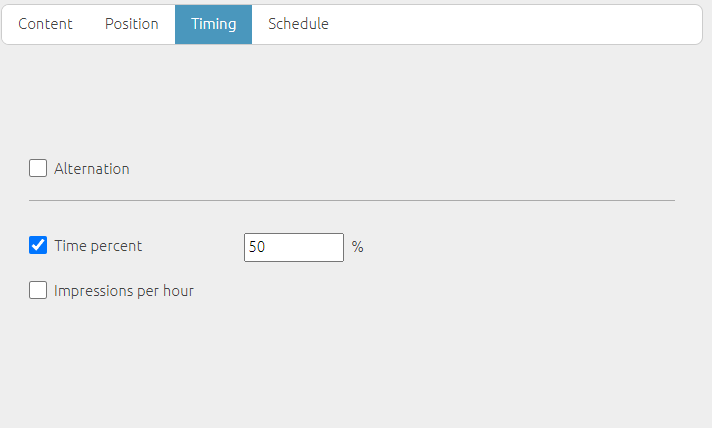
**Alternation** allows you to alternate the contents.
\- The **“Times Percent”** function enables you to set a percentage of playback time for a specific media item or for a list, layout, folder, or project.
\- The **“Times per Hour”** function, on the other hand, allows you to define how many times per hour a specific content should be played.
# Containers
[](https://manuals.macropix.com/uploads/images/gallery/2023-01/eiP64Ligu5fcERez-contenitori.jpg)
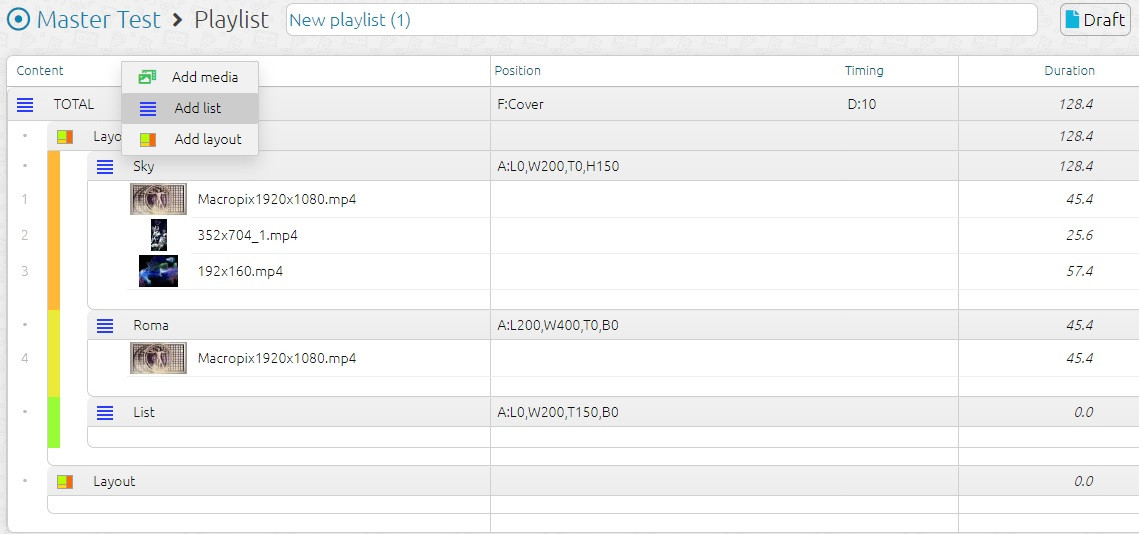
Playlist items can be of two types: **media** and **containers**.
**Containers**
- **Layout:** a tool used to divide the video window into different areas.
- **List:** allows you to divide the playlist into multiple containers to keep it better organized.
# Layout
[](https://manuals.macropix.com/uploads/images/gallery/2023-01/LaYQHFszOHciqIrM-layout.png)
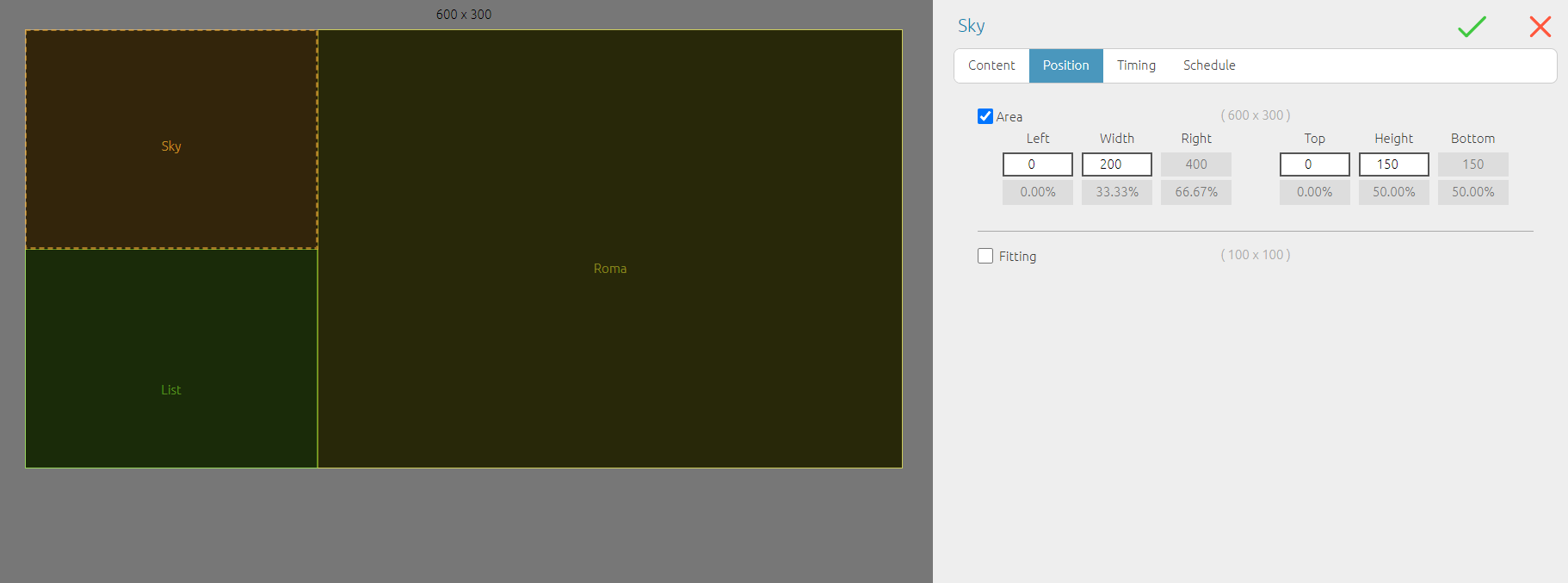
This element allows you to play multiple items in parallel by partitioning the video window.
Once the layout is created, **List** items must be inserted—one for each partition—while assigning the desired area.
Within each list, the corresponding media contents can then be added. All contents will play simultaneously in synchronization.
**Note:** the maximum number of partitions depends on the hardware specifications of the PC. A more powerful processor and graphics card will support a higher number of simultaneous processes.
# Power Saving
# Ekoled
[](https://manuals.macropix.com/uploads/images/gallery/2023-01/JuQjwAwoj3HBusKR-power-saving-eco.jpg)
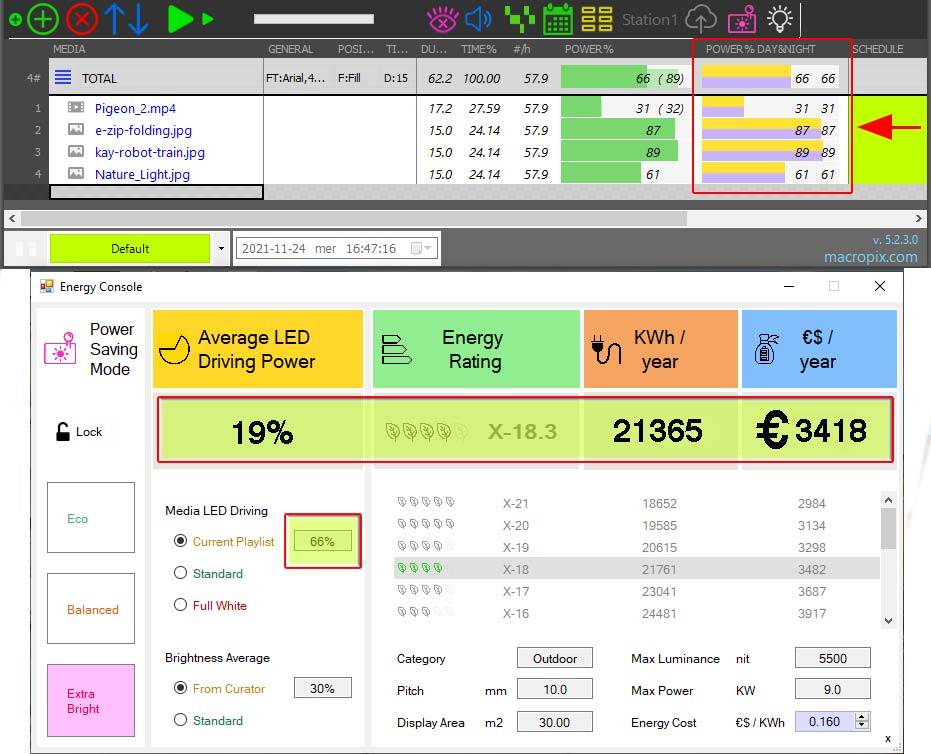
Macropix has developed and patented a proprietary system within its Omnibus digital signage software that allows you to manage and control the energy consumption of an LED display based on the visual content being shown—even down to the individual frames. This feature provides a real-time overview of both economic and environmental savings and can be applied to both outdoor and indoor LED displays.
The software monitors and manages in real time:
- the **physical characteristics** of the display (e.g., nominal power consumption)
- the **brightness settings** throughout the day, ensuring compliance with local regulations, especially during nighttime
- **power-consumption thresholds**, which can be set according to the required maximum load for technical or commercial reasons
- **daylight brightness management**, ensuring regulatory compliance while maintaining optimal visibility
- **switch-on and switch-off** control of receiving cards
Omnibus analyzes each frame of every video or image in the playlist, calculating an average total power consumption. Each piece of content can also be previewed, allowing creative teams to immediately verify energy-saving performance before publication.
# Energy Saving function
[](https://manuals.macropix.com/uploads/images/gallery/2023-01/bed6sMnhn6JBfKDI-power-saving-3.png)
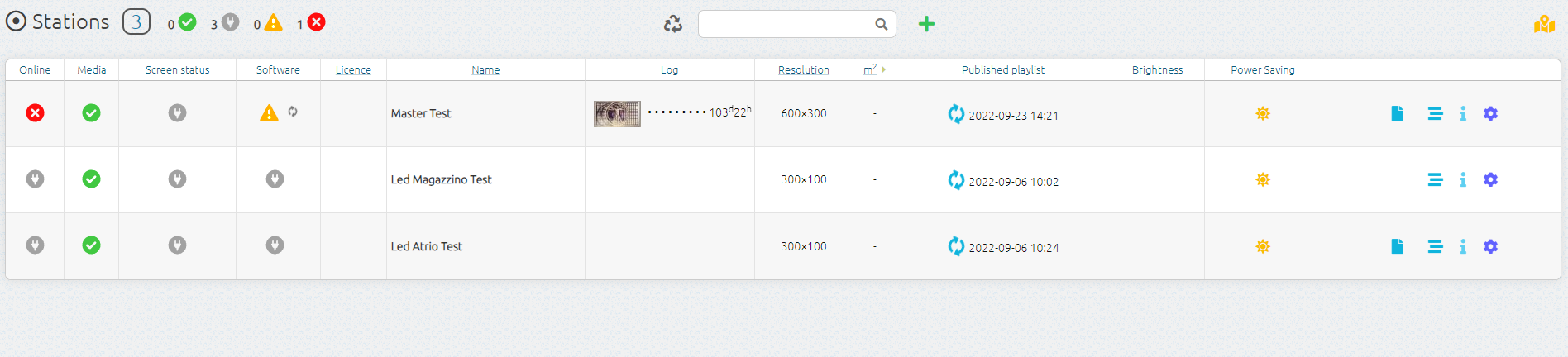
In the **Power Saving** column, you can view the currently selected energy-saving mode.
[](https://manuals.macropix.com/uploads/images/gallery/2023-01/A0jAYPoGRWslYgc9-power-saving-2.png)
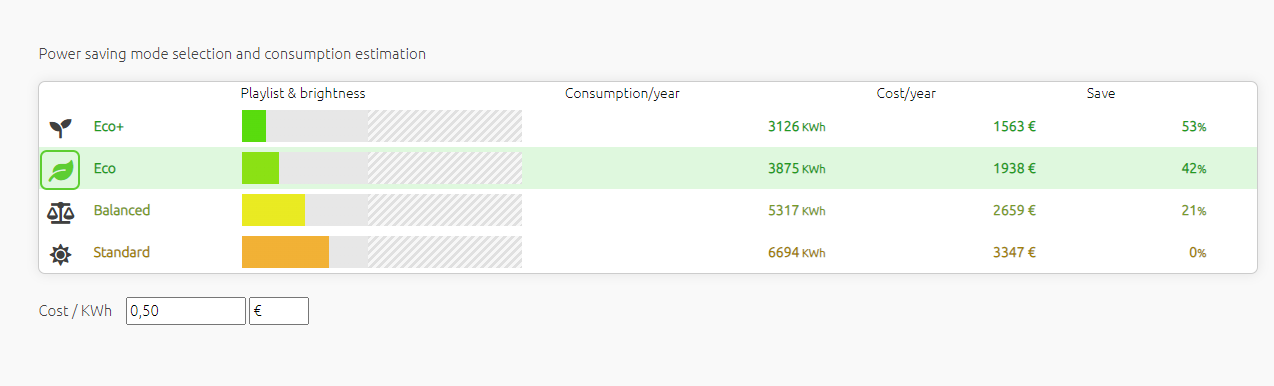
It is possible to select the desired saving mode and set the electricity cost per kWh.
Omnibus will then calculate the operating hours of the LED wall, the brightness table, and the contents loaded in the playlists, allowing you to obtain an estimate of the annual power consumption.
# The Campaigns
# Introduction
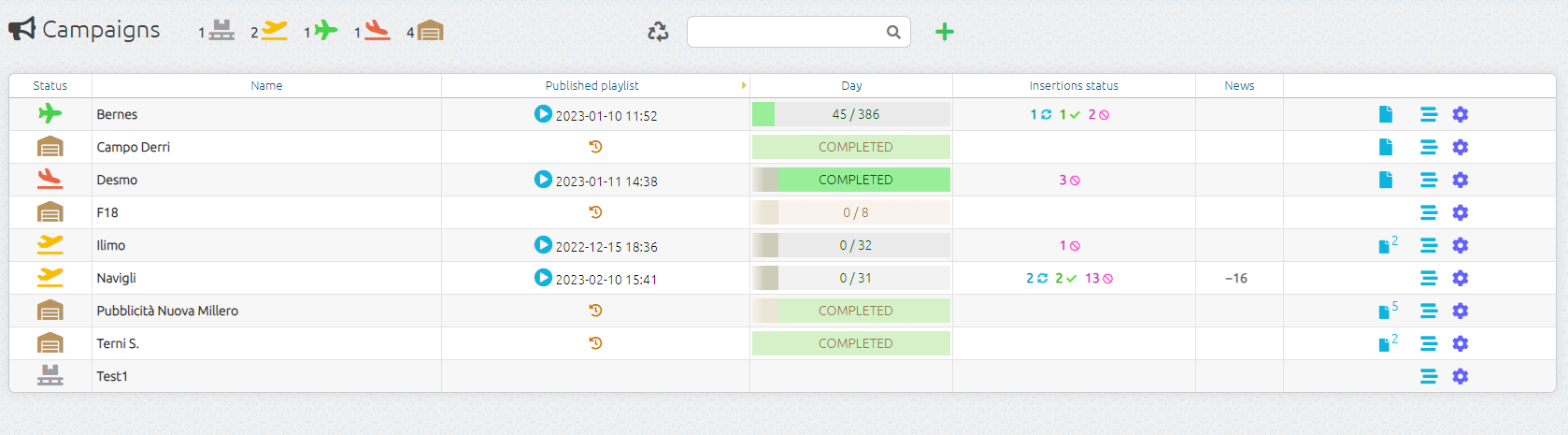
Campaigns make it possible to centrally manage portions of the schedule that are shared across multiple stations. When a campaign is published, it is distributed to all the involved stations by inserting its contents into their respective playlists.
Within each station, one or more advertising spaces can be created for campaigns. Each campaign can then individually decide how and in which advertising spaces its contents should be published.
Insertion spaces to be targeted can be identified either through direct selection or through filtering (by name, tag, kpixel, aspect ratio).
Situations where insertion spaces have different sizes and proportions can be easily managed by applying differentiated filtering within the playlist.
A campaign always includes a start date and an end date, although these dates can be changed with each new publication.
[](https://manuals.macropix.com/uploads/images/gallery/2023-02/QhEgOQeDF3QZ1LJ1-1.png)
# Campaign Creation
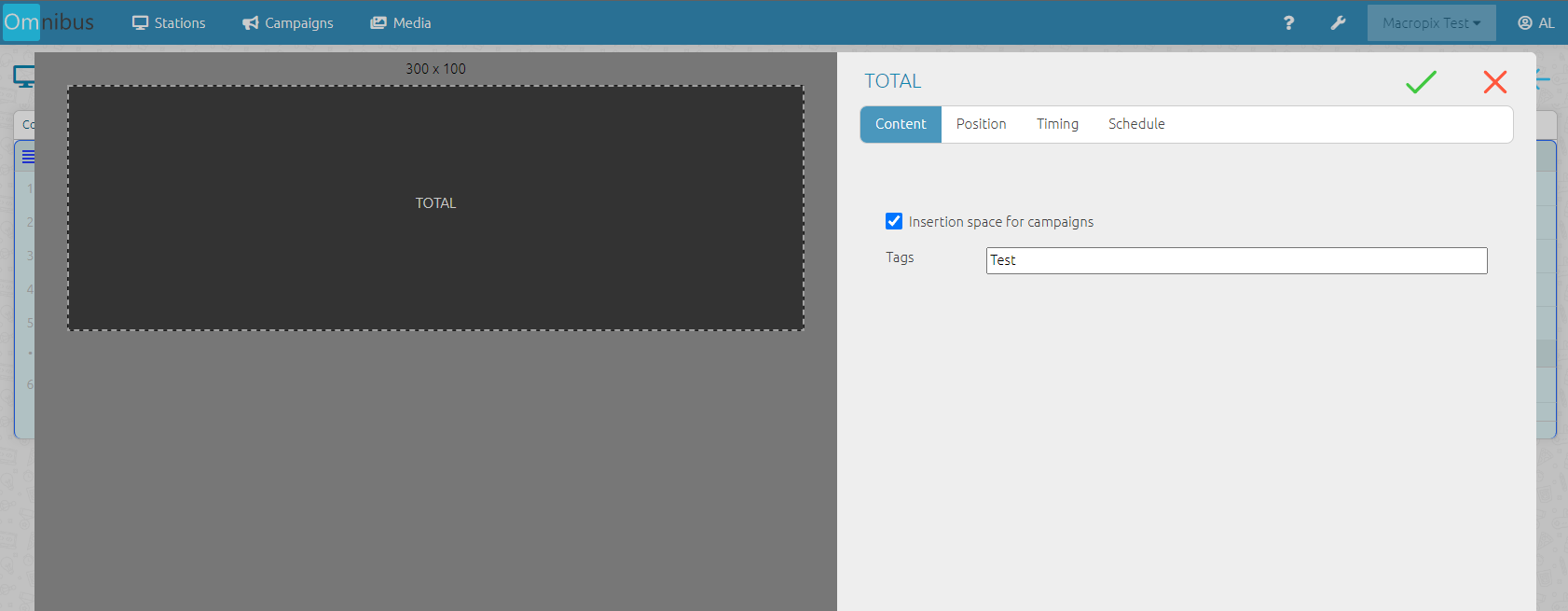
As before, the insertion spaces must be created on each station by enabling the corresponding flag, as shown in the image.
This operation can be performed on both **“Total”** and **“List”** elements within the playlist.
[](https://manuals.macropix.com/uploads/images/gallery/2023-02/9GubF68BMUJZhAlI-1.png)
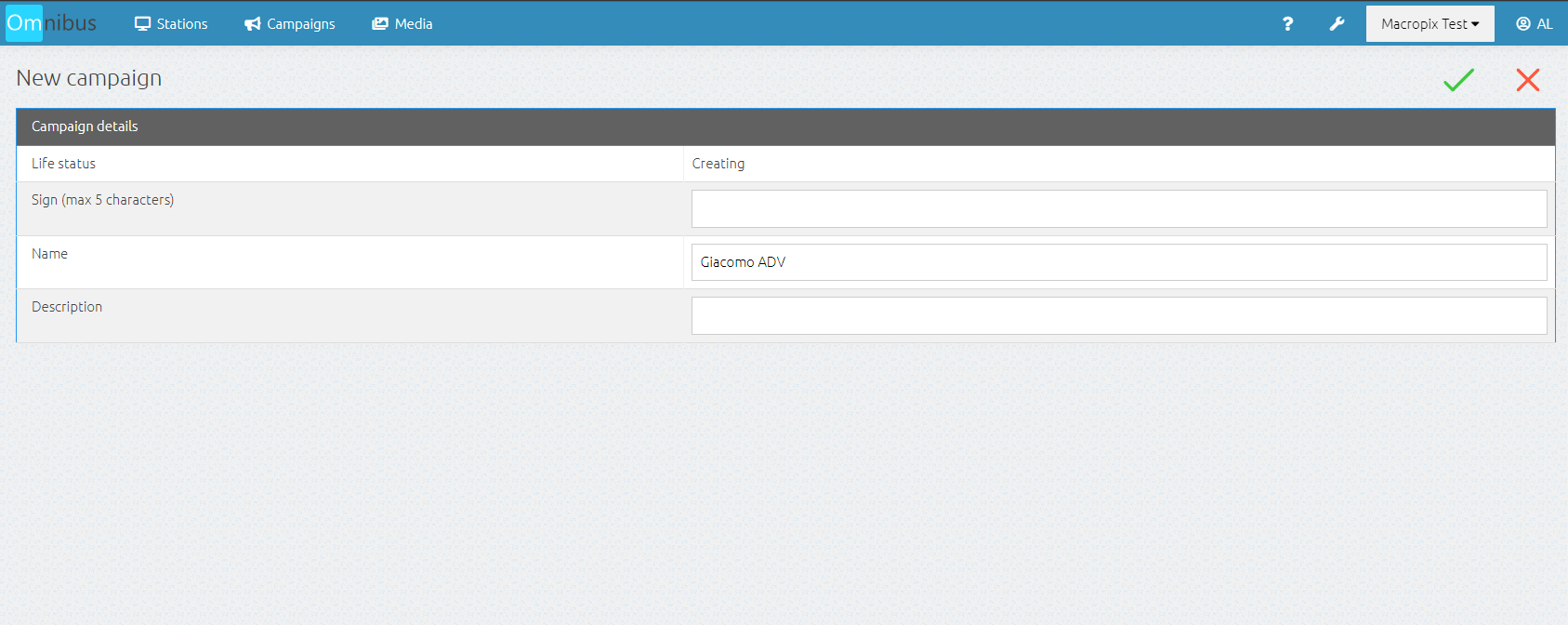
Then enter the **Campaigns** menu, click the **“+”** button, and assign a name and initials.
[](https://manuals.macropix.com/uploads/images/gallery/2023-02/6iT9zNWfhSgElsRS-2.png)
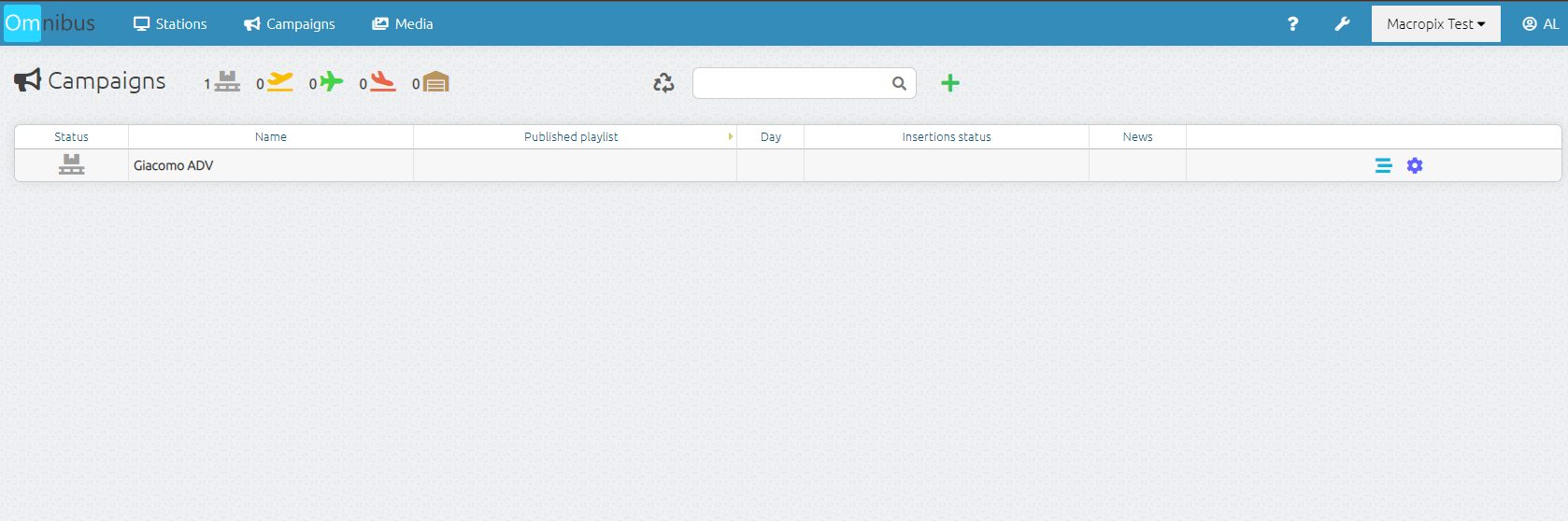
At this point, the campaign has been created and is now ready to be populated with content and published.
[](https://manuals.macropix.com/uploads/images/gallery/2023-02/iUlKlxMAoaJJY9Pr-3.png)
# Publication
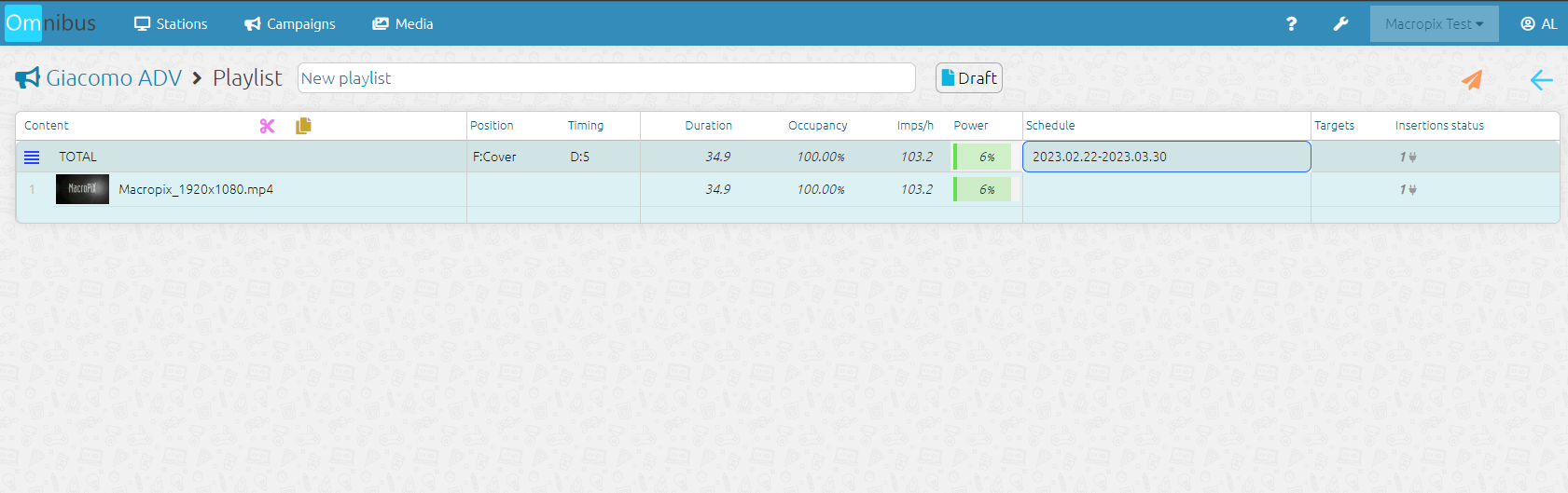
At this point, you need to insert the contents into the campaign playlist.
[](https://manuals.macropix.com/uploads/images/gallery/2023-02/Wd7k1NNgH29kpFOg-4.png)
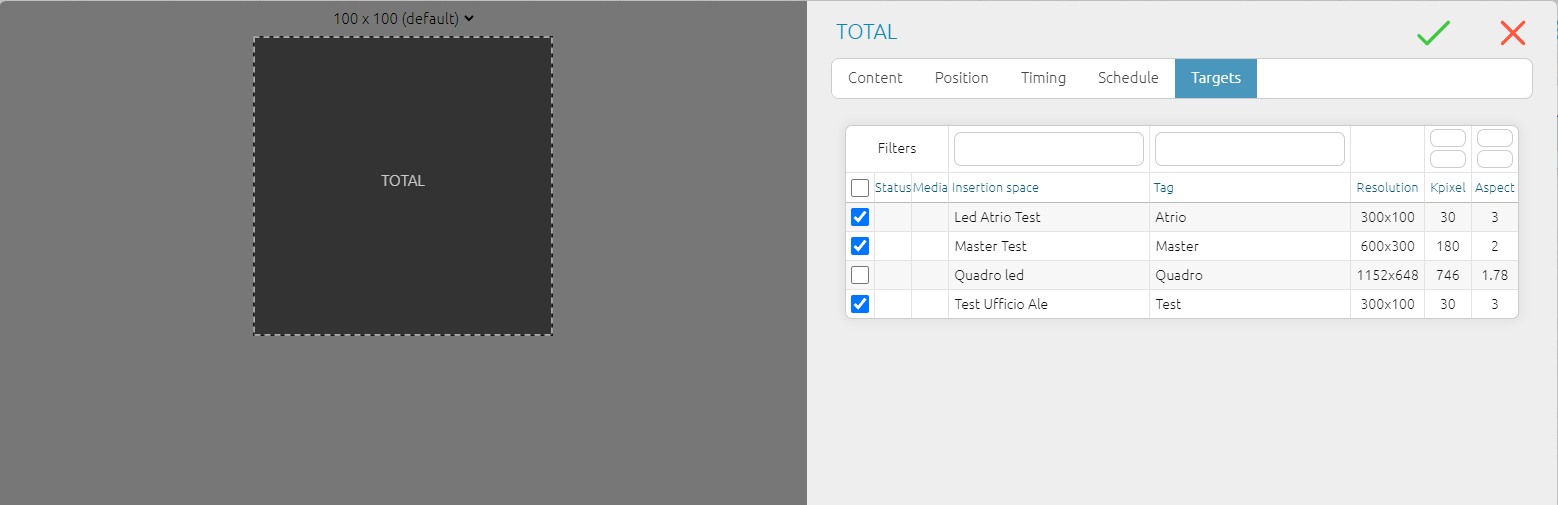
In the **Target** menu, it is possible to select and filter the advertising spaces that will be targeted by the campaign.
[](https://manuals.macropix.com/uploads/images/gallery/2023-02/PDTnQouWiK0cZDuc-wdd.png)
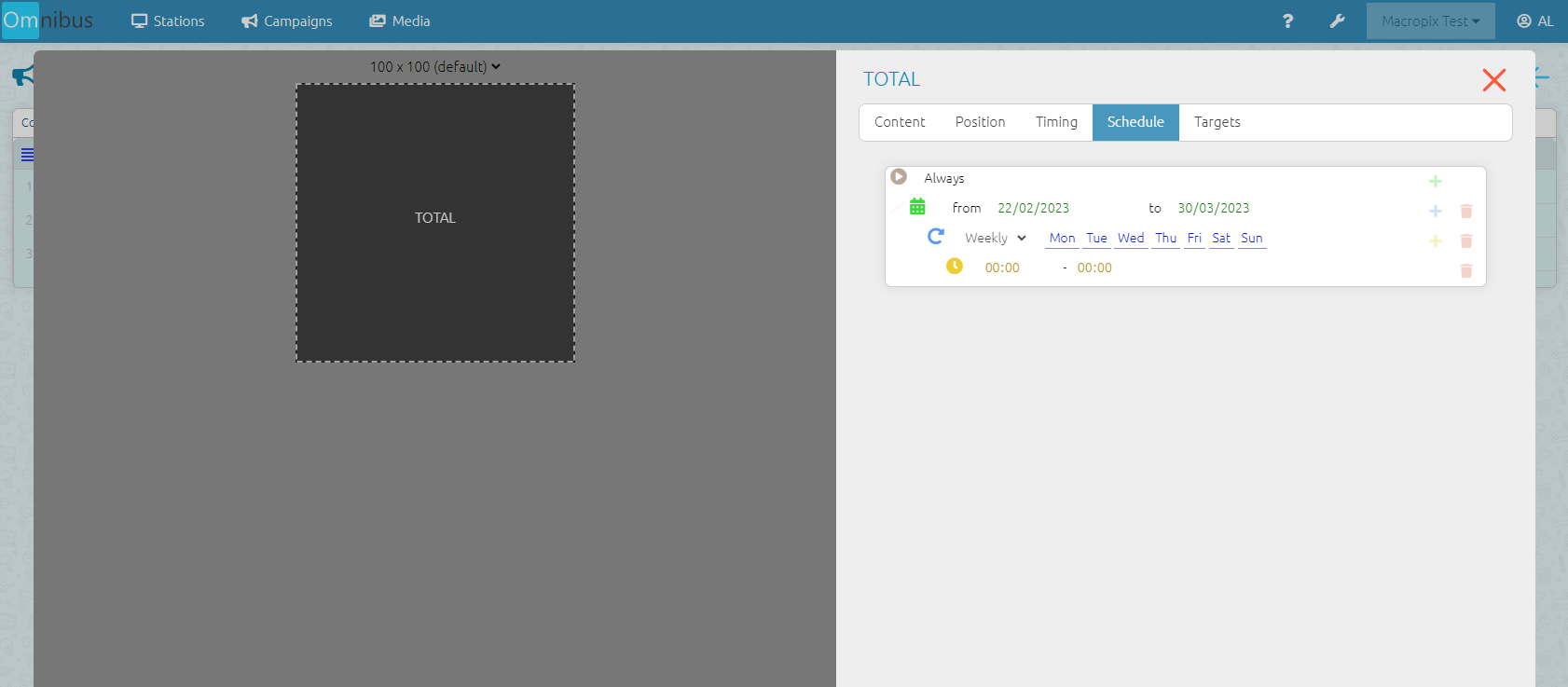
In the **Schedule** menu of the **Total** section, you can set the start and end dates of the campaign.
[](https://manuals.macropix.com/uploads/images/gallery/2023-02/hhPoIDz43NYd1J5f-10.png)
Now all that remains is to publish the campaign by clicking on the [ icon.](https://manuals.macropix.com/uploads/images/gallery/2022-04/image-1649323194074.PNG)
# Campaign verification
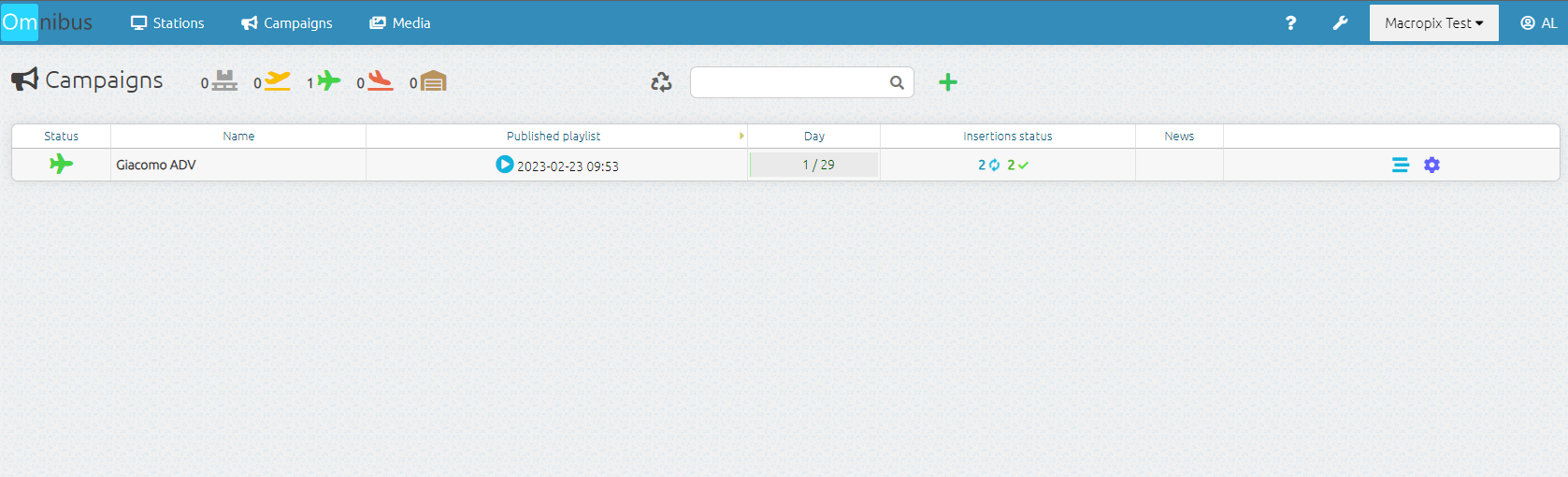
Once the campaign has been published, you can return to the **Campaigns** menu to check the publication progress in the **Insertions Status** column.
[](https://manuals.macropix.com/uploads/images/gallery/2023-02/0jHkrxByAePkVD7W-test.png)
By going to the **Stations** menu, you can verify that the campaign has been correctly distributed, indicated by the pink megaphone icon displayed next to the playlist.
[](https://manuals.macropix.com/uploads/images/gallery/2023-02/UFG5O7seTIwY1XEE-56.png)
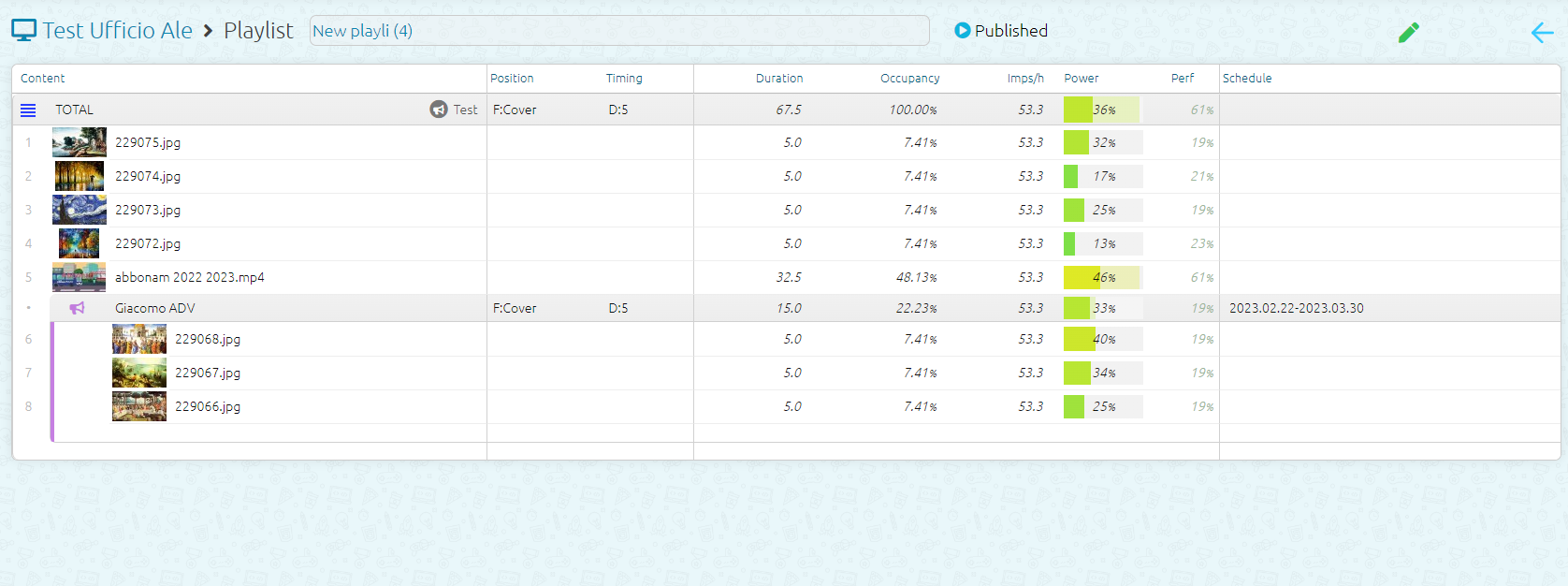
By entering the playlist currently running, you can verify that the campaign has been correctly inserted by the system.
[](https://manuals.macropix.com/uploads/images/gallery/2023-02/jAczkOxq8KPaiFVP-8.png)
# Brightness
# Operating mode
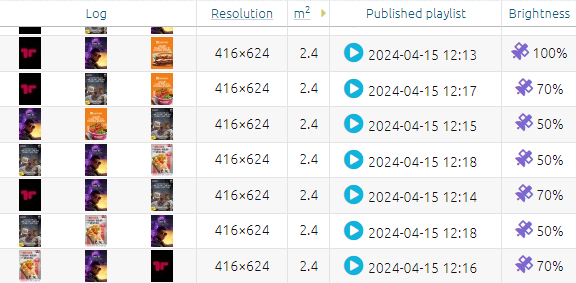
In the **Brightness** column, you can check the current status of the LED display.
[ ](https://manuals.macropix.com/uploads/images/gallery/2024-04/5EFtgE0iovPfuBuQ-kisspng-arrow-red-clip-art-down-arrow-png-transparent-5a756e1159ad86-3285632915176453293673.jpg)
[](https://manuals.macropix.com/uploads/images/gallery/2024-04/N4WU9tf60Qfvwyl5-brigthnesseng.png)
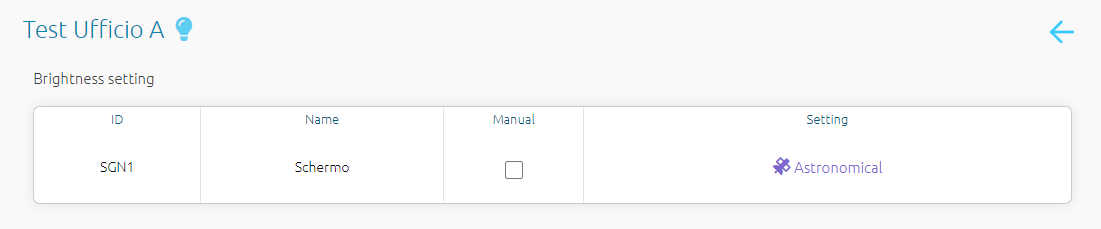
By clicking on the [](https://manuals.macropix.com/uploads/images/gallery/2024-04/Jvn0Ev4UzKS5xUTY-icona-lum.png) icon, you can select the mode used to manage the brightness of the LED display.
[](https://manuals.macropix.com/uploads/images/gallery/2023-03/90uk7dON6MDU7mYJ-curator-2.png)
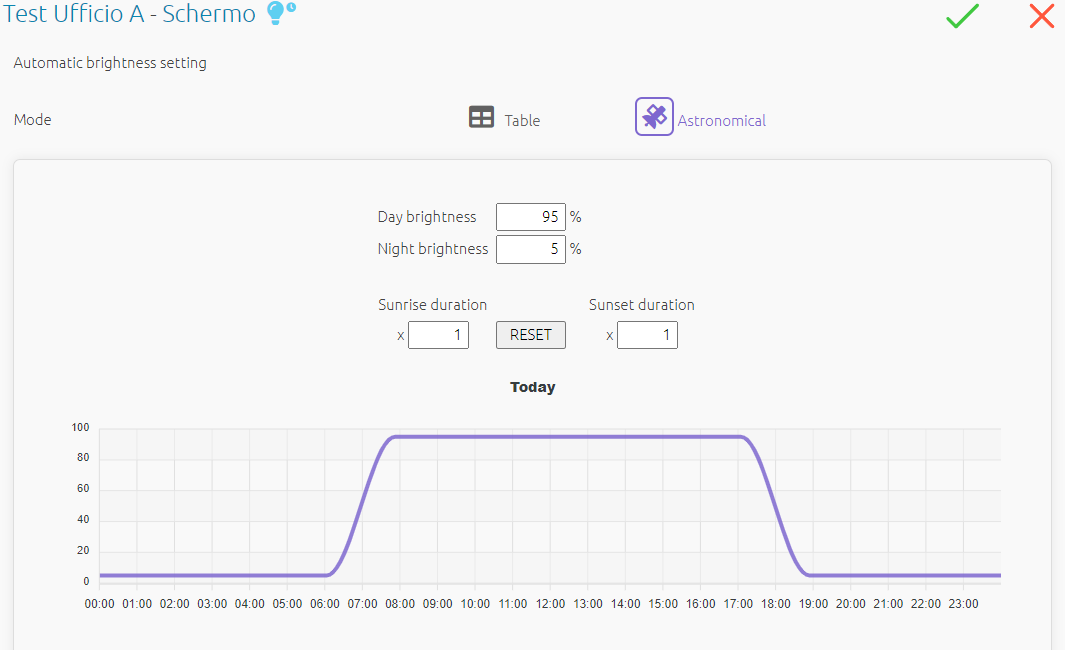
**Astronomical** uses the annual curve of sunrise and sunset.
[](https://manuals.macropix.com/uploads/images/gallery/2023-03/V5iYf7GGUbWJGjjH-curator-4.png)
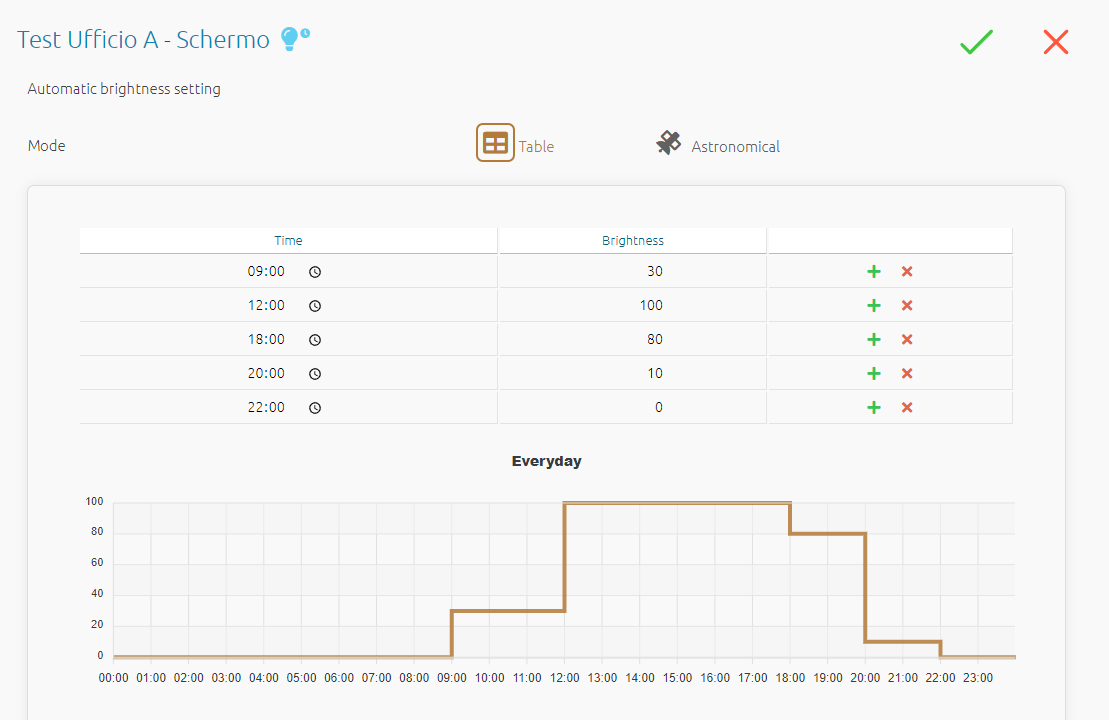
**Table:** hourly scheduling.
[](https://manuals.macropix.com/uploads/images/gallery/2023-03/7zjFuM0aQ5uazY3Z-curator-5.png)
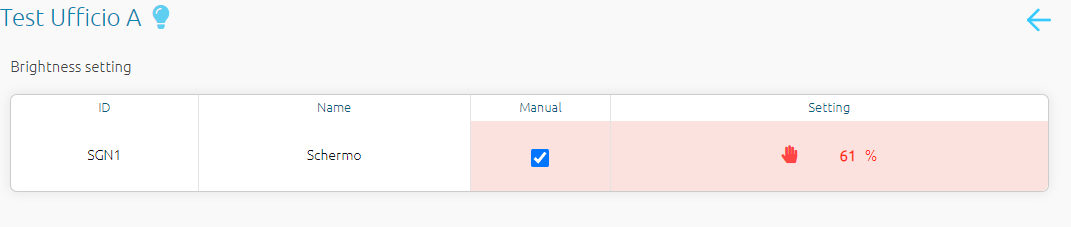
**Manual**: manual and instant adjustments.
[](https://manuals.macropix.com/uploads/images/gallery/2023-03/PmIe364EhlDWLArD-curator-3.png)
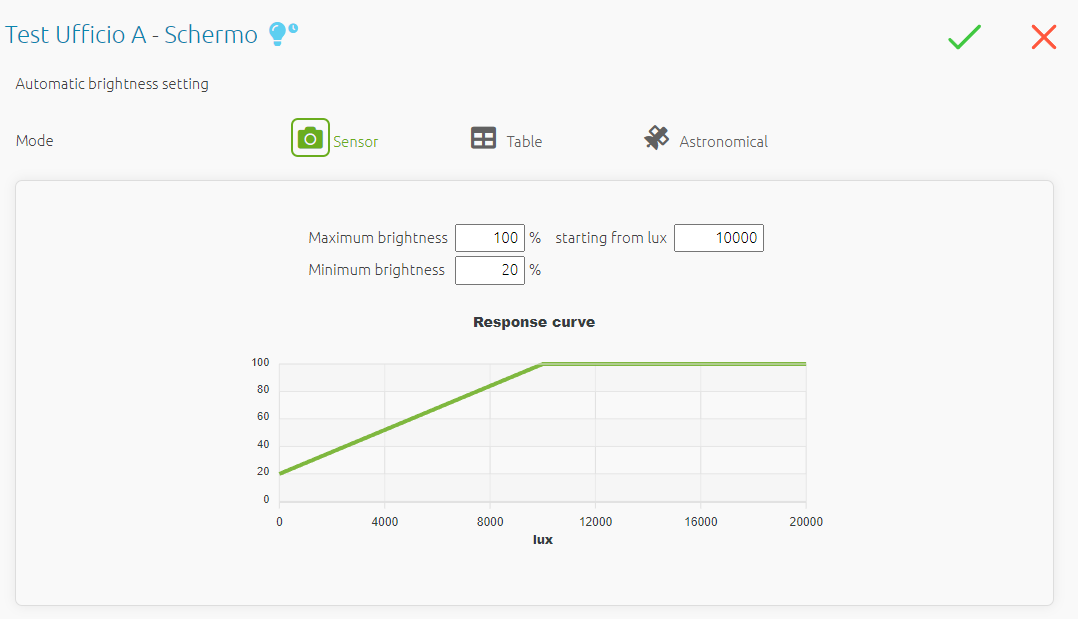
**Sensor**: automatic control via an environmental sensor; visible and can be activated only if a sensor is installed.
[](https://manuals.macropix.com/uploads/images/gallery/2023-03/6WIvLajEyTwcFAN1-curator-6.png)
# Rooms
# Introduction
Rooms are used to share a portion of the playlist to a "guest" user.
[](https://manuals.macropix.com/uploads/images/gallery/2024-04/2hEa0mJGOXVwFHbZ-room.png)
**Typical case:**
An LED display in a store located in another town is managed by the headquarters. However, the store manager needs to manage a portion of the overall playlist to insert special promotions that apply only to that specific store.
This is where the **Room** function comes into play: it creates a virtual, restricted space in which the store manager can manage only the assigned portion of the playlist.
Headquarters can also apply a number of restrictions to the Room to limit or control its use.
---
# Room creation
To create a new Room click the "+" button.
[](https://manuals.macropix.com/uploads/images/gallery/2024-04/L93O3KZHvQONFNfs-creazione-room-start.png)
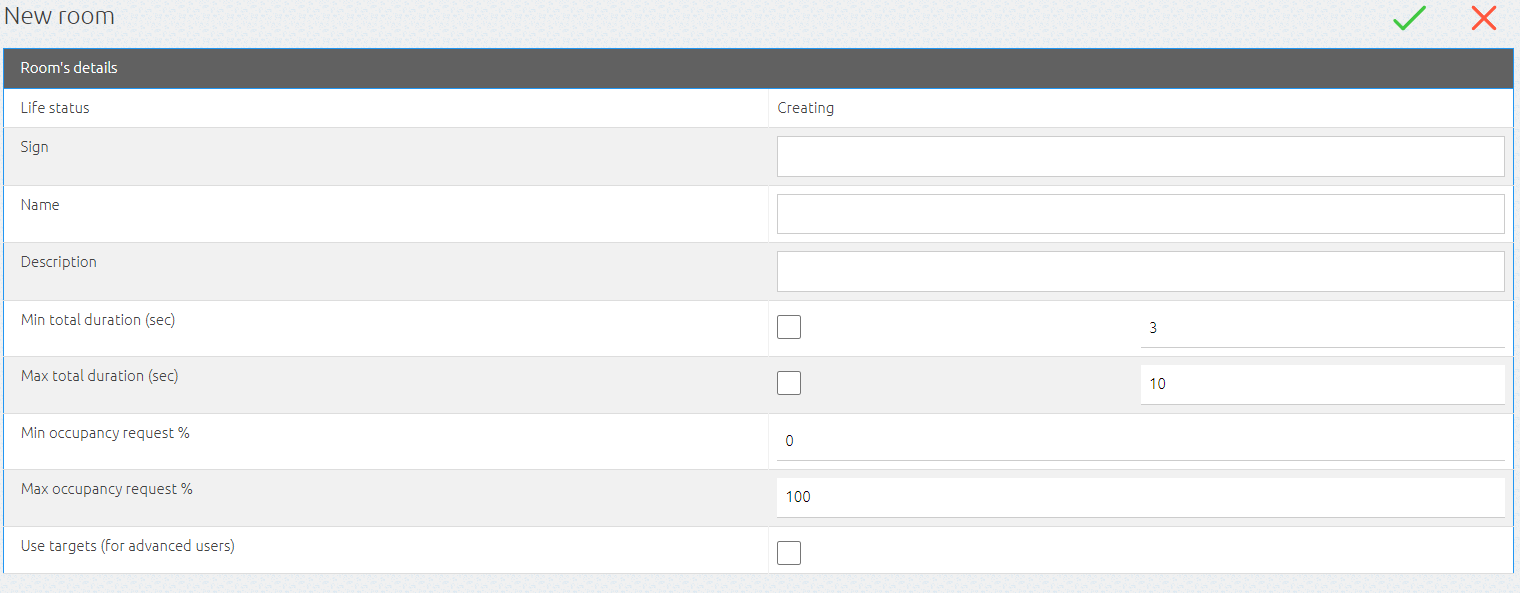
Set an abbreviation, a name, and, if needed, a description.
[](https://manuals.macropix.com/uploads/images/gallery/2024-04/OkvHAyNZHR2FVrNL-creazione-room-en.png)
It is possible to set limits for the Room, such as:
- minimum and maximum duration of its playlist
- minimum and maximum required percentage of playback time
# Gestione playlist
The generated Rooms will be displayed in the **Rooms** menu, showing:
- the status of the Room (open or closed)
- its name
- the applied limits
- the date of the last publication
- the publication status: published, publishing, or unpublished
[](https://manuals.macropix.com/uploads/images/gallery/2024-04/2hEa0mJGOXVwFHbZ-room.png)
By clicking on the **Published Playlist** column [](https://manuals.macropix.com/uploads/images/gallery/2022-04/image-1649323396191.PNG) the guest user can access and populate their playlist.
[](https://manuals.macropix.com/uploads/images/gallery/2024-04/t4UN2CBy1l6iJ3tQ-room-playlist.png)
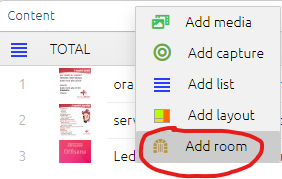
To insert the new Room into the destination playlist, click the **“Add Room”** button [.](https://manuals.macropix.com/uploads/images/gallery/2022-04/image-1649410775580.PNG)
[](https://manuals.macropix.com/uploads/images/gallery/2024-04/mSDyQUOnCu1X2UH9-add-room.png)
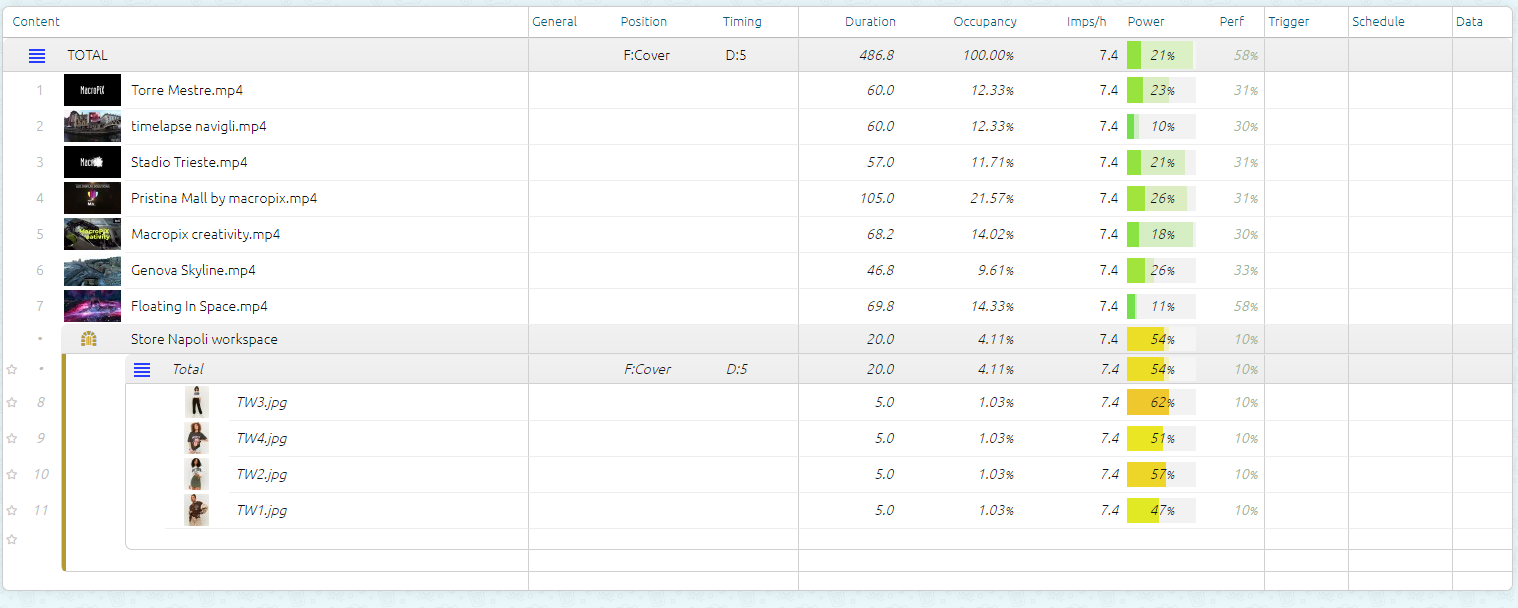
As you can see in the image below, the Room playlist is automatically inserted into the station playlist.
[](https://manuals.macropix.com/uploads/images/gallery/2024-04/X3Atwk5BcrI5Ixug-room-playlistroom.png)
From now on, each time the Room is published, the station’s playlist will be automatically updated.