# Playlist
[](https://manuals.macropix.com/uploads/images/gallery/2022-04/image-1649341378800.png)
By clicking on the playlist icon, you will enter the **Playlist** page.
[](https://manuals.macropix.com/uploads/images/gallery/2022-04/image-1649341387319.PNG)
On this page, you can create a new playlist using [](https://manuals.macropix.com/uploads/images/gallery/2022-04/image-1649323268652.PNG) or edit an existing draft by clicking [](https://manuals.macropix.com/uploads/images/gallery/2022-04/image-1649323323626.PNG)
[](https://manuals.macropix.com/uploads/images/gallery/2022-04/image-1649343848407.png)
Click the **“Add Media”** button and select the media you want to include in the playlist.
[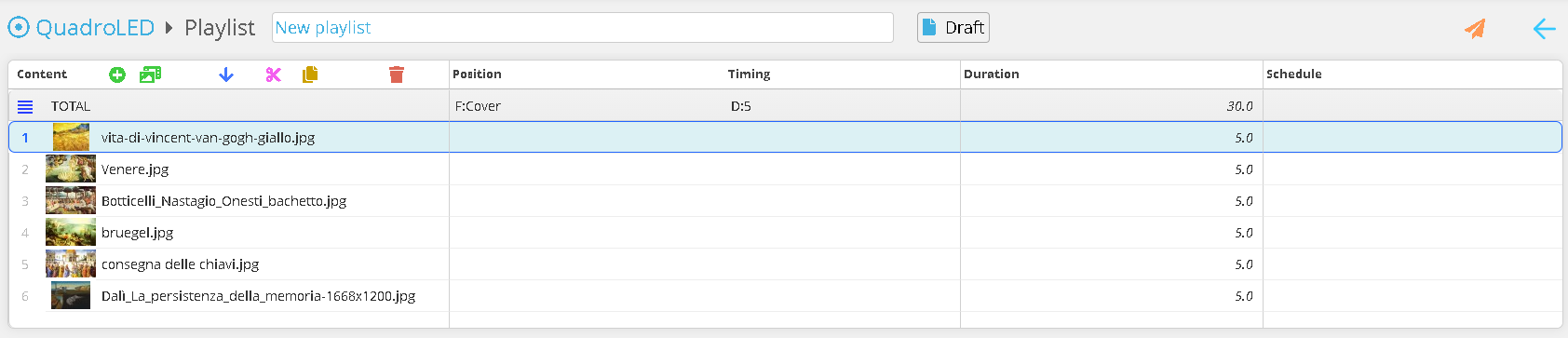](https://manuals.macropix.com/uploads/images/gallery/2022-04/image-1649343910301.PNG)
You can now reorder the contents, duplicate them, or delete them. Once all changes have been completed, you can publish the playlist to the station using [](https://manuals.macropix.com/uploads/images/gallery/2022-04/image-1649323194074.PNG)